Unified Write Filter (UWF) is a native Windows file system filter that can be used to protect physical disks, including users’ and system files, from any changes. When the UWF driver is enabled for a volume, it intercepts and transparently redirects any file system write attempts to a virtual overlay in memory, where all changes are stored. Upon reboot, all changes in the overlay are discarded, instantly restoring Windows to its original, unmodified state from when the UWF filter was enabled.
How to Enable and Configure Unified Write Filter on Windows
The UWF filter is a Windows feature that can be enabled using the classic ‘Turn Windows features on or off‘ applet (optionalfeatures.exe). Expand the Device Lockdown node and enable the Unified Write Filter feature.
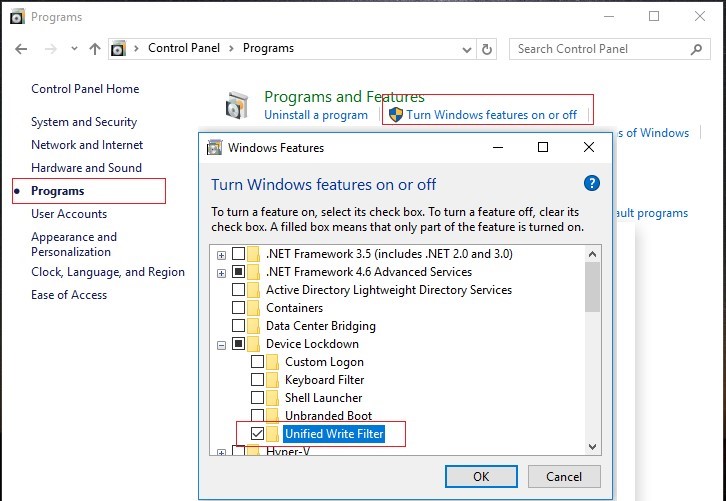
The UWF feature can also be installed using PowerShell:
Enable-WindowsOptionalFeature -Online -FeatureName "Client-UnifiedWriteFilter" –All
Or with DISM:
DISM.exe /Online /enable-Feature /FeatureName:client-UnifiedWriteFilter
The uwfmgr.exe console command is used to manage UWF settings. To enable Unified Write Filter on Windows, run the following command:
uwfmgr.exe filter enable
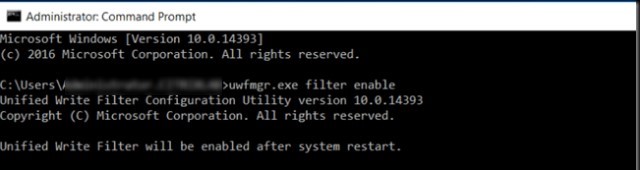
Enabling the write protection filter will change several Windows settings to eliminate unnecessary write operations to the disk. The following Windows options will be disabled:
- Paging (swap) file
- System restore points
- File indexing service
- Defragmentation in disk maintenance tasks.
To enable write protection for a specific drive, run this command:
uwfmgr.exe volume protect c:
To enable protection for all volumes:
uwfmgr.exe volume protect all
Then restart your computer. After restarting the computer, any data written to the disk during the session will only be available until the next reboot. Any changes will be discarded.
Check the UWF status using this command:
uwfmgr.exe get-config

In this example, you can see that the system disk is protected and the UWF filter is enabled (Volume state: Protected).
The current overlay settings in which the UWF stores temporary data can be displayed using the command:
uwfmgr overlay get-config
The following UWF overlay parameters can be configured:
- Type – overlay type. You can store data on disk (DISK) or in RAM. RAM overlay is used by default.
- Maximum size – the maximum overlay size.
- Warning Threshold – if the amount of data in the overlay exceeds the limit, a warning will appear.
- Critical Threshold – the size of the overlay, if exceeded, a UWF error will appear.
- Freespace Passthrough – used only for disk overlay mode. It used to write data to any free space on the disk rather than to a special overlay file.
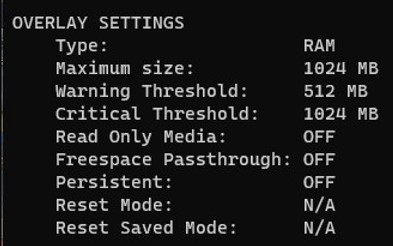
A RAM overlay of 1 GB is assigned by default. This size is usually not enough for normal device operation. The key point is that if the overlay data size exceeds this value, the computer will automatically reboot and reset because UWF will no longer have space to write the data.
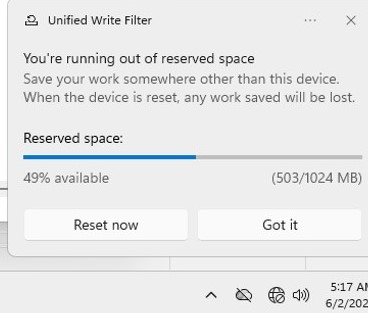
The screenshot below shows an example of a pop-up warning that appears when there is insufficient space in an overlay:
Unified Write Filter
Save you work somewhere other than this device. When the device is reset, any work saved will be lost.
Reserved space available:
For example, for a computer with 16 GB of RAM, let’s assume that 8 GB is enough for the system and applications to work, and that the rest will be allocated to the overlay. And we’ll immediately increase the thresholds for warnings about insufficient free space in the overlay.
uwfmgr overlay set-size 8192
 uwfmgr overlay set-criticalthreshold 8192
 uwfmgr overlay set-warningthreshold 7168
To use a disk overlay instead of RAM, run the following command:
uwfmgr overlay set-type Disk
The current size of the data in the overlay can be displayed as follows:
uwfmgr overlay get-consumption
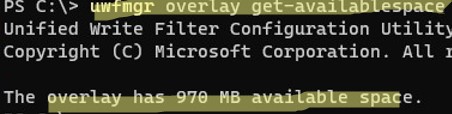
Show the remaining free space in the overlay.
uwfmgr overlay get-availablespace
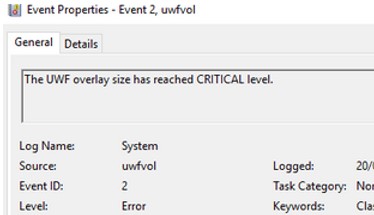
When there is no more free space in the overlay, the UWFVOL writes the Event ID 2 to the Event Viewer with the following message:
The UWF overlay size has reached CRITICAL level.
Servicing Windows Device Protected with Unified Write Filter
When performing system maintenance tasks (installing updates, updating antivirus signatures), you need to put your Windows device into a special UWF servicing mode:
uwfmgr servicing enable

After restarting, Windows will boot under the local UWF-Servicing account and will automatically install available Windows updates (via Windows Update or approved WSUS updates) and update antivirus signatures. If you want, you can log on to the computer under the UWF-Servicing account (the password for this user is unknown, but it can be reset).
After the UWF-Servicing user is automatically logged on, the uwfservicingshell.exe tool starts, which runs the Windows servicing scripts. You cannot do anything else while the device is in service mode.
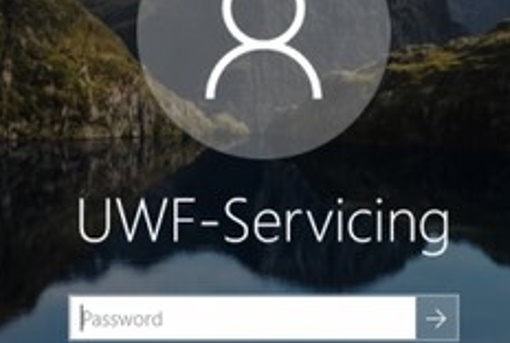
Once the updates have been installed, the computer will automatically restart in normal mode with the UWF filter enabled.
It is also possible to install Windows updates without switching to UWF Servicing mode. Use the command:
uwfmgr servicing update-windows

Unified Write Filter updated Windows result: REBOOT REQUIRED.
Adding Unified Write Filter Exclusions in Windows
If you need to force a modified file to be saved to disk while the UWF filter is enabled, use this command:
uwfmgr file commit C:\Labs\MyApp.exe
Now the file won’t be deleted even if you restart Windows.
To completely remove a file from a volume with a UWF write protection enabled, use the command:
uwfmgr file commit-delete C:\Labs\MyApp.exe
uwfmgr registry commit HKLM\REG_KEY\PATH
uwfmgr registry commit-delete HKLM\REG_KEY\PATH
You can add certain registry keys, files, or directories on a protected volume to the UWF exclusion list. These changes will be written directly to disk rather than to the overlay, ensuring they persist through a device restart.
To add a specific directory to the exclusions:
Uwfmgr.exe file add-exclusion c:\labs
Adding a specific file to the exclusions list:
Uwfmgr.exe file add-exclusion c:\labs\report.docx
To add an exclusion for the registry key:
Uwfmgr.exe registry add-exclusion "HKLM\Software\My_RegKey"
Restart the machine to apply the new exclusion list.
To list the folders and files added to the UWF filter exclusions, run the following command:
uwfmgr file get-exclusions all
List registry exclusions:
uwfmgr.exe registry get-exclusions
To remove a file from exclusions:
uwfmgr file remove-exclusion c:\labs\report.docx
You cannot add exclusions for some system files or folders, like:
- Registry files in \Windows\System32\config\
- Root of the volumes
- \Windows, \Windows\System32, \Windows\System32\Drivers directories
- Pagefile.sys, swapfile.sys
For some services to work correctly, it is necessary to add paths to their directories, files, and registry keys to the write filter exclusion list. For example:
Exclusions for BITS:
- % ALLUSERSPROFILE%\Microsoft\Network\Downloader
- HKEY_LOCAL_MACHINE\Software\Microsoft\Windows\CurrentVersion\BITS\StateIndex
Exceptions for wireless networks (allow you to connect to Wi-Fi networks and save WLAN profiles):
- HKEY_LOCAL_MACHINE\SOFTWARE\Policies\Microsoft\Windows\Wireless\GPTWirelessPolicy
- C:\Windows\wlansvc\Policies
- HKEY_LOCAL_MACHINE\SOFTWARE\Microsoft\wlansvc
- C:\ProgramData\Microsoft\wlansvc\Profiles\Interfaces\{<Interface GUID>}\{<Profile GUID>}.xml
- HKEY_LOCAL_MACHINE\SYSTEM\CurrentControlSet\services\Wlansvc
- HKEY_LOCAL_MACHINE\SYSTEM\CurrentControlSet\services\WwanSvc
Exclusions required to join wired networks:
- HKEY_LOCAL_MACHINE\SOFTWARE\Policies\Microsoft\Windows\WiredL2\GP_Policy
- C:\Windows\dot2svc\Policies
- HKEY_LOCAL_MACHINE\SOFTWARE\Microsoft\dot3svc
- C:\ProgramData\Microsoft\dot3svc\Profiles\Interfaces\{<Interface GUID>}\{<Profile GUID>}.xml
- HKEY_LOCAL_MACHINE\SYSTEM\CurrentControlSet\services\dot3svc
Exclusions for Windows Defender Antivirus:
- C:\Program Files\Windows Defender
- C:\ProgramData\Microsoft\Windows Defender
- C:\Windows\Temp\MpCmdRun.log
- HKEY_LOCAL_MACHINE\SOFTWARE\Microsoft\Windows Defender
How to Reset or Disable the Unified Write Filter UWF
You can reset the UWF filter settings to the initial ones (at the moment the filter is turned on):
uwfmgr filter reset-settings
To disable UWF completely (after a reboot, all changes on the disk will be saved):
uwfmgr.exe filter disable
Or you can disable the filter for a specific volume:
uwfmgr.exe volume unprotect E:
- Disable UWF driver autostart by changing the value of Start parameter to 4 in the reg key HKEY_LOCAL_MACHINE\SYSTEM\ControlSet001\Services\uwfvol
- Delete the uwfvol string in HKEY_LOCAL_MACHINE\SYSTEM\ControlSet001\Control\Class\{71a27cdd-812a-11d0-bec7-08002be2092f}\Lower Filters
Using UWF with Hibernate Once/Resume Many (HORM) Mode
Starting with Windows 10 1709, another UWF filter mode appeared – Hibernate Once/Resume Many (HORM). When enabled, it allows the system state to be frozen, meaning that every time the device powers on, it boots directly into an immutable, pre-configured, hibernated state in which all the required apps are started, and files are opened.
Limitations of HORM mode on Windows:
- The UWF filter must be enabled for all local fixed drives
- UWF filter exceptions are not supported
- Overlay works in RAM mode only (disk-overlay is not supported)
- Hibernation and Fast Startup are disabled
To enable the HORM mode, run the command:
uwfmgr filter enable-horm

Unified Write Filter enabled HORM. Please hibernate the system to use HORM functionality. The system must be hibernated at least once after run enable-horm command, or it may bring the system into corrupted state.
Configure the user’s working environment (run the required apps, open files, etc.). Then put the computer into hibernation mode with the command:
shutdown /h
Wake up your computer and restart it. Windows will now always boot from the state saved in the hibernation file.
To disable HORM mode, run the command:
uwfmgr filter disable-horm
The UWF filter can be used to implement other interesting scenarios:
- Improving Windows performance (nothing is written on the disk, all write operations are performed in the memory, like on a RAM disk).
- You can reduce wear on solid-state drive cells (SSD/CompactFlash) due to the smaller number of write operations.
- Experimenting, testing of third-party software, and exploring malware (for these purposes, you can also use the Windows Sandbox).
The Write Protection Filter in Windows can be used in classrooms, on educational and public computers (a kind of Windows kiosk mode). on industrial and embedded systems, and in any other case where maximum OS integrity is required to prevent changes and failures. A potential issue with this solution is that systems with intensive disk I/O can quickly use up all the available space in the overlay. This will result in frequent automatic reboots. In this case, either move the overlay from RAM to disk or increase the amount of RAM.
6 comments
Hello, I tried to follo many HowTos to activate UWF on Windows 10 LTSB (after installing also last available Cumulative Update and Maintenance Stack Update). After setting correctly UWF filter on C: partition, I have many troubles related to Windows that is trying to download Updates and Language Update Packs. Is this a normal condition? Must I lock by myself all Windows attempts to update itself? To lock Windows Updates I found on internet a small utility called Wub (I don’t know if I can post it’s download URL) that locks Windows Update Service start locking also it’s start settings, because it seems that Windows 10 maintenance task re-enable it automatically. How can I block language updates? Are there other updates processes to block? How?
Regards
Mauro
You can configure your devices to receive updates from your WSUS (https://woshub.com/installing-configuring-wsus-on-windows-server-2012/) server with the manual approving of new updates for your Win 10 LTSB edition, or regularly (once a month) install Windows security patches from Windows Update servers in accordance with the article “Apply Windows updates to UWF-protected devices” (https://docs.microsoft.com/en-us/windows-hardware/customize/enterprise/uwf-apply-windows-updates)
https://docs.microsoft.com/en-us/windows-hardware/customize/enterprise/uwf-antimalware-support lists more registry exclusions for the Windows Defender than described here. Unfortunately, after excluding
HKEY_LOCAL_MACHINE\SYSTEM\CurrentControlSet\Services\WdBoot
HKEY_LOCAL_MACHINE\SYSTEM\CurrentControlSet\Services\WdFilter
HKEY_LOCAL_MACHINE\SYSTEM\CurrentControlSet\Services\WdNisSvc
HKEY_LOCAL_MACHINE\SYSTEM\CurrentControlSet\Services\WdNisDrv
HKEY_LOCAL_MACHINE\SYSTEM\CurrentControlSet\Services\WinDefend
PC did not boot anymore and was hanging there with the rotating donut. Problem occurred after 2nd restart! After restoring the partition from an image to bring the system back to live and removing the mentioned exclusions the PC works again.
Don’t know what really causes the troubles but I will never ever add these exclusions again.
I want to make a script, that will check the enable or disable-status of the write filter, depending on its current state.
$State = uwfmgr.exe filter get-config
Select-String -inputObject $State -pattern “Filter State: OFF”
This actually doesn’t work. Can anybody improve that?
Alternately, can get the state from the registry value
HKLM\SYSTEM\CurrentControlSet\Services\uwfvol\parameters\static\copy0, UwfEnabled – 0 Disabled , 1 Enabled (Next Session)
HKLM\SYSTEM\CurrentControlSet\Services\uwfvol\parameters\static\copyV, UwfEnabled – 0 Disabled , 1 Enabled (Current Session)
https://learn.microsoft.com/en-us/windows/iot/iot-enterprise/customize/uwfexclusions:
“Adding files and folders to exclusions will not reduce overlay consumption. Exclusions are intended to allow small amounts of data and configuration to persist after the device restarts.”
This conflicts with your claim that:
“The changes you make to these items will be written directly to the disk, and not to the overlay.”