When analyzing the free space usage on the system drive in Windows, many users discover that the WinSxS (%windir%\WinSxS). directory takes up a significant amount of space. In this article, we’ll explain what is stored in the WinSxS system folder and how to clean it properly.
The C:\Windows\WinSxS (Windows Side-by-Side) directory contains the Windows component store. This directory stores the DLL libraries, binaries, and XML files required for installing and operating various Windows roles and features, both those that are installed and those that are available for installation. When Windows updates are installed, certain system component files are replaced with newer versions, while superseded file versions are retained in the WinSxS component store. This allows you to safely uninstall any Windows update and roll back to the previous version of the component.
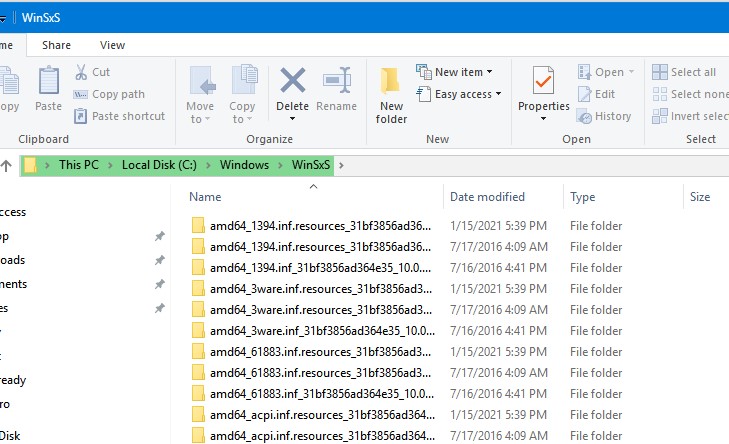
Another drawback of this architecture is that the WinSxS directory size continuously grows, as it retains all superseded component versions.
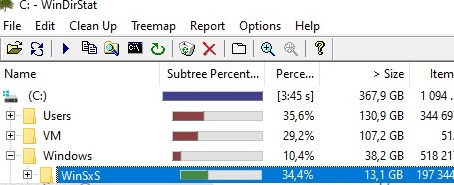
The size of the WinSxS folder should typically not exceed 10-15 GB. If the WinSxS directory size on your computer is significantly larger, run the cleanup procedure.
How to Get the Actual Size of WinSxS Folder on Windows
The easiest way to get the current size of the WinSxS folder on Windows is to open the properties of the %windir%\WinSxS folder in File Explorer (or use a PowerShell script to check the size of a folder). But keep in mind that most file managers (including File Explorer) show a slightly larger WinSxS folder size than it takes on disk.
The fact is that the WinSxS directory contains a large number of hard links (symbolic links) to system files in other folders. File managers take into account the size of files referenced by hard links when calculating the size of the WinSxS folder, but this is not correct.
You can use the du tool from Sysinternals to find out the real size of the WinSxS folder on disk. du -v c:\windows\winSXS
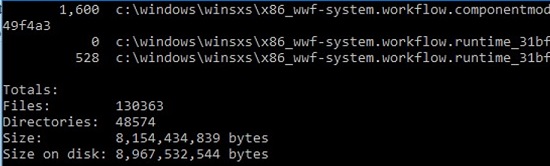
You can also analyze the size of the component store in the WinSxS folder using the DISM command:
Dism.exe /Online /Cleanup-Image /AnalyzeComponentStore
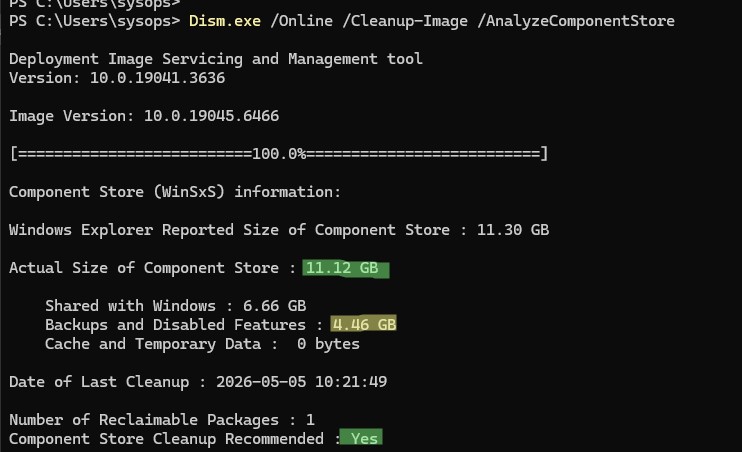
Let’s see what this command returns:
Component Store (WinSxS) information:
Windows Explorer Reported Size of Component Store | 11.30 GB | This is the component size, including hard links, as displayed in File Explorer. |
Actual Size of Component Store | 11.12 GB | The actual size of the component store, excluding hard links. |
Shared with Windows | 6.66 GB | These are mandatory system files. Cannot be deleted. |
Backups and Disabled Features | 4.46 GB | These are superseded component files that may be needed if there are problems with installed updates. |
Cache and Temporary Data | 0 bytes | Temporary files used by Windows to speed up servicing, updates, and cleanup operations |
Date of Last Cleanup | 2026-04-04 11:20:19 | |
Number of Reclaimable Packages | 1 | These are components whose files were updated (replaced) after installing Windows updates. You can safely remove old versions of these component files when cleaning up the component store. |
Component Store Cleanup Recommended | Yes/No |
In my case, I can reduce the size of the WinSxS folder by 4.5 GB.
Dism /Online /Get-Packages /Format:Table
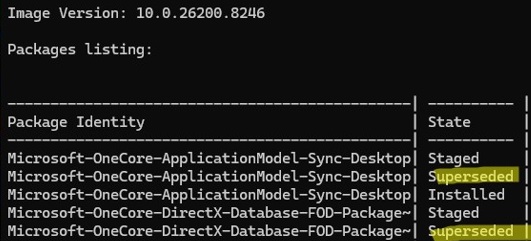
Packages with a Superseded status have been replaced by newer updates and can be removed. For manual superseded package removal, use the command: Dism /Online /Remove-Package /PackageName:PACKAGE_Full_Name. However, there is no need to use it since an automatic cleaning procedure is in place (see below).
Automatic Component Store Clean Up with a Task Scheduler
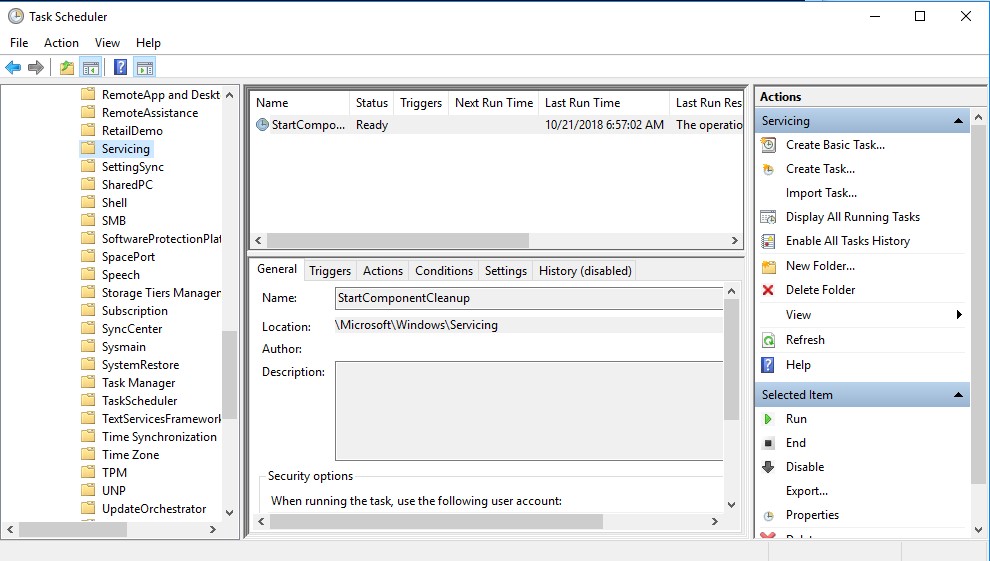
The StartComponentCleanup task is a preconfigured Windows Task Scheduler task that regularly optimizes and cleans up the WinSxS folder by removing old or superseded system components. It is set to run automatically during system idle time (as a part of the image maintenance servicing tasks), waiting 30 days after an update has been installed before removing superseded component versions. This gives the user time to roll back to the previous version if there are any issues with the new update.
Use either the Task Scheduler taskschd.msc snap-in or PowerShell to ensure that this scheduled task exists and is enabled, and to check when it last ran:
Get-ScheduledTask StartComponentCleanup
Get-ScheduledTask StartComponentCleanup | Get-ScheduledTaskInfo
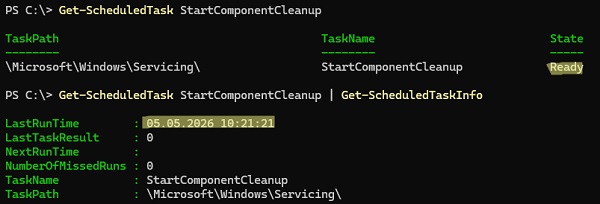
To run the scheduler task manually, use the command:
Start-ScheduledTask StartComponentCleanup
How to Clean Up the Component Store (WinSxS) on Windows
To initiate the immediate clean-up of the Windows Component Store to remove superseded file versions, bypassing the 30-day expiration period, run the following command:
Dism.exe /Online /Cleanup-Image /StartComponentCleanup
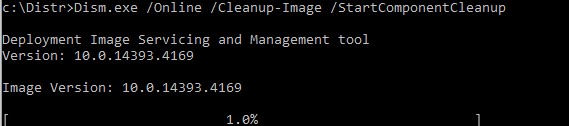
The command searches for superseded components and removes old, unused versions of system files. DISM also applies delta compression to superseded components, converting them into compact difference files.
Once the cleanup is complete, check the current size of the component store:
Dism.exe /Online /Cleanup-Image /AnalyzeComponentStore
In my example, the size of the WinSxS folder was reduced by 4.5 GB.
The /StartComponentCleanup option includes a /ResetBase option that enables the removal of all superseded component versions remaining after Windows update installations.
Dism.exe /Online /Cleanup-Image /StartComponentCleanup /ResetBase
DISM /online /Cleanup-Image /spsuperseded
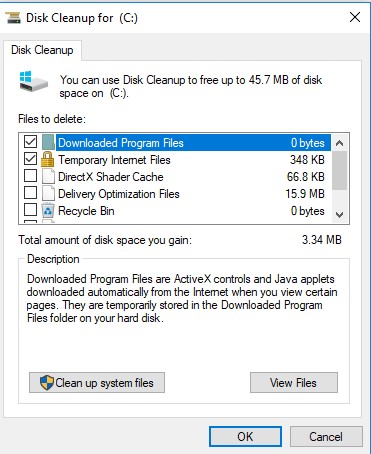
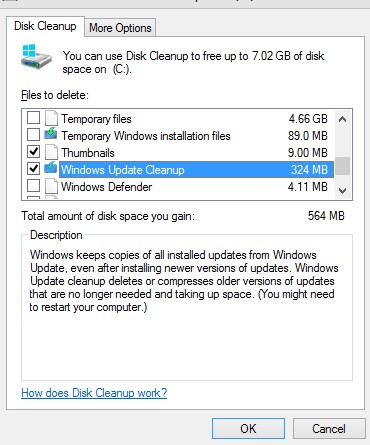
Also, you can use the graphical Disk Cleanup wizard to remove old update files:
- Run the
cleanmgrcommand as an administrator. - Select the disk and in the next window, click the “Clean up system files” button.

- Then select the “Windows update cleanup” option. The Disk Cleanup tool shows how much disk space can be freed up by deleting old Windows update files. In my example, it is about 320 MB. Click OK to start the cleanup.

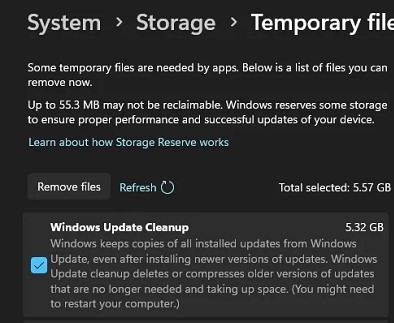
The new Storage Sense cleanup option is available in the Windows 11 Settings panel under System > Storage > Temporary Files. Check the option Windows Update Cleanup to remove previous update files.
Remove Unused Roles and Features from Windows Image
As part of the Features on Demand (FoD) concept, Windows enables you to remove the binaries of any unused roles and components from the component store (WinSxS directory).
Use the command below to list all the features available in a Windows image:
DISM.exe /Online /Get-Features /Format:Table
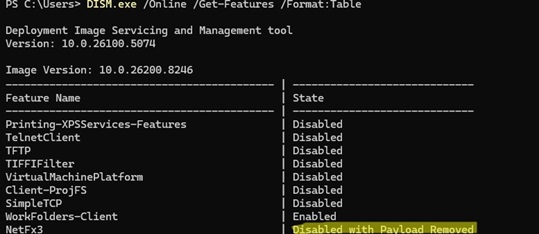
By default, only the .Net Framework 3.5 feature is removed from the Windows 10 and 11 images (It can always be installed manually).
To remove, for example, the TelnetClient feature from the Windows image (from the WinSxS folder), run the command: DISM.exe /Online /Disable-Feature /Featurename:TelnetClient /Remove
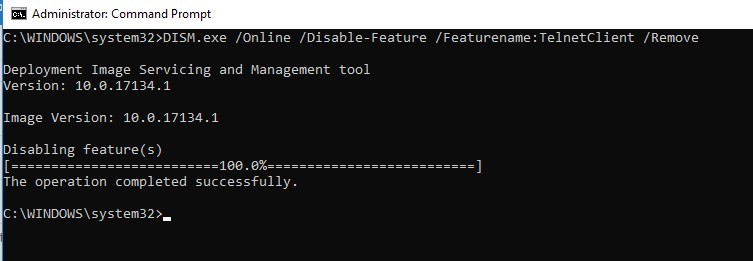
If you list all the available on-demand features in Windows now, you will see that the status of the component has changed to Disabled with Payload Removed.
Thus, you can reduce the size of the WinSxS folder in Windows by removing unused features from the disk. If necessary, you can always install removed features via Windows Update or from an installation ISO image.
DISM /Online /Cleanup-Image /RestoreHealth
How to Enable NTFS Compression on WinSxS Folder on Windows
There’s another (unofficial) way to reduce the size of the WinSxS directory on Windows: compress its contents at the NTFS file system level. This can reduce the space occupied by the WinSxS directory by up to 30%.
This compression method is effective in Windows 10 but has almost no impact in Windows 11.
- Open the command prompt as administrator.
- Stop and disable the Windows Installer and Windows Module Installer services:
sc stop msiserver
 sc stop TrustedInstaller
 sc config msiserver start= disabled
sc config TrustedInstaller start= disabled - Backup the Access Control Lists (ACLs) assigned to the files and folders in the WinSxS directory using the built-in icacls command. An ACL backup is a plain text file containing a list of all the files and directories, along with the NTFS permissions assigned to each one (later, this file will be needed to restore the original ACLs):
icacls "%WINDIR%\WinSxS" /save "%WINDIR%\WinSxS_NTFS.acl" /t

- Make yourself the owner of the WinSxS folder and all its subfolders:
takeown /f "%WINDIR%\WinSxS" /r - Grant your account full control permissions on the WinSxS directory:
icacls "%WINDIR%\WinSxS" /grant "%USERDOMAIN%\%USERNAME%":(F) /t - You can now use the compact command to compress files in the WinSxS directory. Because some of the files can be used by the system, you need to specify the
/Ioption. Otherwise, the compression process will stop at the first locked file (in Windows 10 and 11, you can use more advanced LZX compression):
compact /s:"%WINDIR%\WinSxS" /c /a /i *

- Restore the owner of the WinSxS directory back to TrustedInstaller:
icacls "%WINDIR%\WinSxS" /setowner "NT SERVICE\TrustedInstaller" /t - Restore the original ACLs for the WinSxS folder items using the ACL backup file you created earlier:
icacls "%WINDIR%" /restore "%WINDIR%\WinSxS_NTFS.acl" - Restore the default startup type for the Windows Installer and Windows Module Installer services:
sc config msiserver start= demand
 sc config TrustedInstaller start= demand


Check the current size of the WinSxS directory.
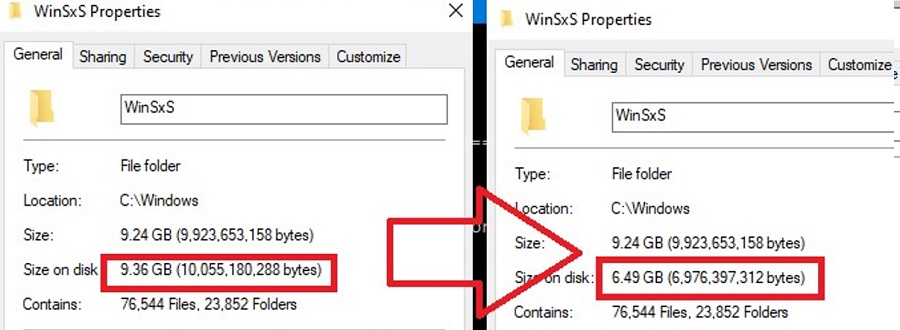
As shown in the example provided, the size of the WinSxS folder decreased by around 30% (from 9.4 GB to 6.5 GB) after compression. Not bad, especially for a small-sized SSD drive.
The specified commands can be executed one by one (making it easier to track the results of each one), or they can be combined into a single script file. You can download the ready-to-use batch file to enable NTFS compression for items in the WinSxS folder here: winsxs_ntfs_compress.bat
You should run this script regularly, as new uncompressed files will appear in the WinSxS folder when you install new Windows updates or features.
22 comments
Thank you very much!
I tried your solution, but step 8 “Recover original ACLs to the WinSxS directory” failed with the following messages:
C:\Windows\WinSxS\Manifests\x86_microsoft.vc80.crt_1fc8b3b9a1e18e3b_8.0.50727.42_none_db5f52fb98cb24ad.cat: Access denied.
Successfully Processed 20618 files; Failed to process 1 file.
In fact it failed to process 24000 files because it aborted due to the Access Denied failure.
I tried to re-run the instruction and edited that line so it could pass that phase and it only processed 4 files more and failed again.
Are you able to hint how to proceed from now?
Check current permission on file x86_microsoft.vc80.crt_1fc8b3b9a1e18e3b_8.0.50727.42_none_db5f52fb98cb24ad.cat. Try take ownership of file and grant your account full rights to it. Next repeat step 8 again.
Or manually set the permissions on the file in accordance with the data in the file WinSxS_NTFS.acl
Hi,
It also failed on me with the restoring ‘TrustedInstaller’ part, saying access denied.
I presume this is because the first steps gave my user Ownership, but, we didnt add my user as a user to the actual permissions.
So, when you try to change back to TrustedInstaller, your user doesnt have the access to do that. Atleast that is how I see it.
So, I had to run this instead, to get back to TrustedInstaller Owner:
icacls “%WINDIR%\WinSxS” /grant Rob:(F) /t /c
icacls “%WINDIR%\WinSxS” /setowner “NT SERVICE\TrustedInstaller” /t /c
icacls “%WINDIR%\WinSxS” /remove Rob /t /c
It gives my user ‘Rob’ fullcontrol first, then changes to TrustedInstaller, and then finally removes my user permission for ‘Rob’.
Replace ‘Rob’ with whatever your username is.
It seems that even though you can take ownership and then do things, you dont have permission to change ownership back, unless you give your user ‘Full control’ permissions.
HTHs,
Rob.
Hi, Rob!
Thanks for your comment, but we give current user Full Control permission on step 5, then execute command:
icacls “%WINDIR%\WinSxS” /grant “%USERDOMAIN%\%USERNAME%”:(F) /t
You must just replace %USERDOMAIN%\%USERNAME% on your username
I’m sorry but compressing winSXS seems to increase size on disk? in my case it does 🙁
winSXSfolder shows decrease size on disk, but when I check the drive full size it actually increased.
my mistake, forgot to restart PC now it shows correct size 🙂
Extremely good looking guide. Most be one and only on web to go through this deep analyze of how to go further in data usage.
Honestly, since Microsoft is being a brick while operating systems with full support should take less than 500MB in size while online and then consider what people actually wants to use in os the whole idea of increasing size to raise hardware market supported by all new hardware manufacturers is good for marketing, but there should be some system ripped to WinPE level where only thing that should take space is few KB driver base for all devices, but since now days a simply 500KB audio driver can turn to 250MB totally idiotic bloatware it’s hilarious really. Sadly this is possible at linux side, but Microsoft sure is enjoying the install size being around 20-30GB in full with only barebone components in the machines.
To solve the “sc config msiserver start= demand” Access is denied, use NSudo and run the same command again:
sc config msiserver start= demand
Nice one Woshub.com, simply lifting the WinSXS compressing part from my blog and not giving any credit! http://dandar3.blogspot.com/2013/01/how-to-ntfs-compress-windows-winsxs.html
Does this work with windows server 2008 sp2?
KB2852386 is for Server 2008 R2. Is not applicable to Server 2008 SP2. For Server 2008 SP2, use Compcln.exe.
This is a great guide.
You might want to update and mention that current versions of Windows 10 automatically clean up the WinSXS folder – and note which things you mention are not a part of the automatic cleanup.
As Microsoft states from their cleanup Doc…
“Windows 10 and Windows Server 2016 automatically reduce the size of the WinSxS folder by using methods similar to the ones described in this topic, in addition to internal processes, such as uninstalling and deleting packages with components that have been replaced by other components with newer versions. Previous versions of some components are kept on the system for a period of time, allowing you to rollback if necessary.”
This might help users, so they aren’t taking time to repeat steps that Windows 10 is now doing for them. It might also help with confusion when the size doesn’t change, and to know when they can still rollback items.
Do you talk about a task named StartComponentCleanup (located in the task scheduler section \Microsoft\Windows\Servicing)? This task deletes replacement packages files older than 30 days.
When you issue `compact /s:”%WINDIR%\WinSxS” /c /a /i` instead of `compact /s:”%WINDIR%\WinSxS” /c /a /i *`, the WinSxS directory *itself* will be marked as “compressed”, too. This means any newly created subfolders and files will be compressed right from the start and it’s no longer necessary to run this script periodically.
> icacls “%WINDIR%\WinSxS” /grant “%USERDOMAIN%\%USERNAME%”:(F) /t
Didn’t work for me instead use: icacls “%WINDIR%\WinSxS” /grant User:F /t
[1]https://stackoverflow.com/questions/2928738/how-to-grant-permission-to-users-for-a-directory-using-command-line-in-windows
Very good article. Helped me 100%.
Before 100Mb, after 8Gb.
This should be included script in the Citrix Optimization tool and BASE Image Script Framework for non-persistent virtual desktops. Reduced free space from 3.42GB to 6.47GB saving limited server SSD intellicache for our six servers. Great work, Thank you.
On the web you can find in another script that allows to reduce the size of the WinSxS folder — WinSxSLite (by Christian Bering Boegh). According to the developer, this script searches the latest version on dll files in WinSxS, makes symbolic links to them from all previous versions and removes the old file versions. It is no recommended to use WinSxSLite, because in spite of the idea being good, the result of running the script is unpredictable, and though the WinSxS folder size is reduced, some Windows components can be damaged
Hi!
I made a deeply cleanup from Windows 10, and now, I cant install Windows Media Player, is not the files to enable via powershell this feature.
It’s possible to reinstall Features and apps deleted in Winsxs and made possible reinstall it?
Thanks
Great!!! Really helpful!