PowerShell modules are packaged collections of cmdlets that can be used to manage various Windows components, server roles, and cloud services. Modules are used to manage infrastructure and automate various tasks. The centralized PowerShell Gallery repository contains thousands of ready-to-use modules (from Microsoft as well as other vendors and independent developers) that can be downloaded and installed on computers. This article covers the basics of managing PowerShell modules in Windows, including managing PowerShell repositories and installing, updating, and removing PS modules.
How to Manage PowerShell Repositories in Windows
By default, only a single official public Microsoft package repository, the PowerShell Gallery (PSGallery, https://www.powershellgallery.com/), is registered in all Windows OS versions.
To list all the registered repositories in Windows, run:
Get-PSRepository

An administrator can add extra repositories, including private ones, or register a local repo stored in a directory on the local computer or in a shared network folder on the LAN (by its UNC path).
For example, to add a new PowerShell repository located in a shared folder:
Register-PSRepository -Name myCORPPSRepo -SourceLocation \\mun-man01\PSRepo -InstallationPolicy Trusted
To remove a registered repository:
Unregister-PSRepository myCORPPSRepo
The PSGallery repository is not trusted by default, so a warning will appear the first time you try to install any module from it.
Untrusted repository
You are installing the modules from an untrusted repository. If you trust this repository, change its InstallationPolicy value by running the Set-PSRepository cmdlet. Are you sure you want to install the modules from 'PSGallery'?
[Y] Yes [A] Yes to All [N] No [L] No to All [S] Suspend [?] Help (default is "N"):

To mark a specific repository as trusted, run:
Set-PSRepository -Name PSGallery -InstallationPolicy Trusted
If you accidentally removed the default PSGallery repository from a computer, you can restore it using the following command:
Register-PSRepository -Default
Install PowerShell Modules in Windows From a Repository
To install a PowerShell module, specify its name. The PowerShell module installation command can be generated directly on the PowerShell Gallery website.
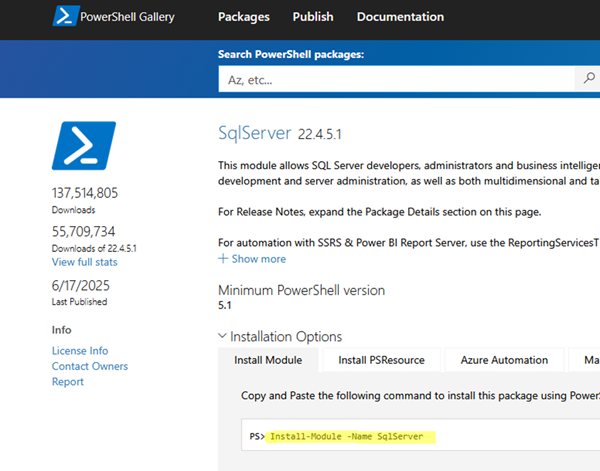
Or you can find the name of the required module by searching through the configured repositories. For example, let’s list all the PowerShell modules for managing BIOS settings from different vendors.
Find-Module *BIOS*
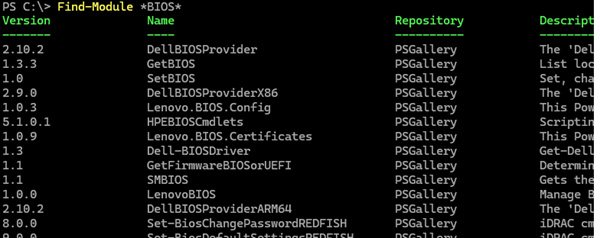
Copy the name of the required module and run the installation command:
Install-Module DellBIOSProvider
The specified module will be downloaded from the PSGallery and installed on your computer.
-Repository– can be used to manually specify the name of the source repository from which to install or search for a module.-RequiredVersion– specify the exact version of the PowerShell module required (by default, the latest available version is installed).-Scope– allows you to install the module only for the current user (CurrentUser) or for all users on the computer (AllUsers).-Force– used to perform a forced installation of a PowerShell module without prompting for confirmation.
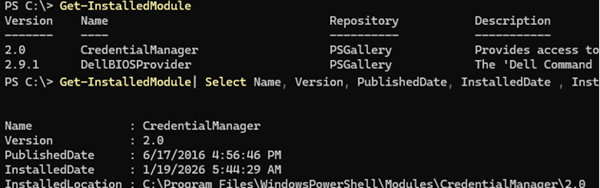
To list third-party PowerShell modules installed on the computer (by default, they are installed in the C:\Program Files\WindowsPowerShell\Modules folder):
Get-InstalledModule
The command prints the module versions, descriptions, and repositories from which they were obtained. You can show additional module information, such as the installation date, release date, installation directory, and other details:
Get-InstalledModule| Select Name, Version, PublishedDate, InstalledDate , InstalledLocation
To list all the built-in PowerShell modules, run the command:
Get-Module -ListAvailable
In order to use a module, it must first be imported into the current PowerShell session. To import a specific module, run:
Import-Module DellBIOSProvider
In addition, modules can be imported manually from any directory:
Import-Module "C:\Temp\MyCustomModule"
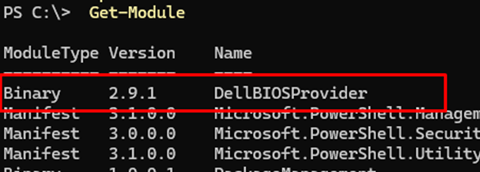
$env:PSModulePath environment variable upon the initial invocation of a cmdlet associated with that module.The following command displays only the modules that have already been loaded (imported) into the current session. To check whether the specified module has been loaded, run the command:
Get-Module
Restricted, thereby preventing the execution of third-party scripts and modules. Therefore, an error will occur when attempting to use the new module.Import-Module : File C:\Program Files\WindowsPowerShell\Modules\DellBIOSProvider\2.9.1\DellBIOSProvider.psm1 cannot be loaded because running scripts is disabled on this system.

To enable the execution of local PowerShell scripts (including modules), run the following command:
Set-ExecutionPolicy RemoteSigned
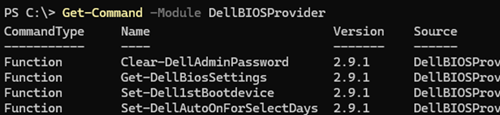
List the PowerShell commands (cmdlets) available in a module:
Get-Command -Module DellBIOSProvider
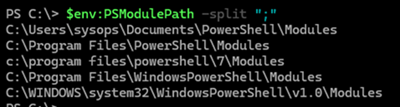
The PSModulePath environment variable contains a list of directories from which modules can be imported without specifying their full path.
$env:PSModulePath -split ";"
By default, it contains:
- Modules for all users –
$Env:ProgramFiles\WindowsPowerShell\Modules - Modules for the current user (administrator privileges are not required for installation) –
$HOME\Documents\WindowsPowerShell\Modules - Built-in PowerShell modules –
$PSHOME\Modules
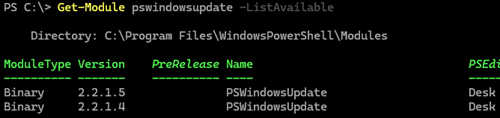
Multiple versions of the same module can be installed on a computer. You can list the available versions of a module with:
Get-Module pswindowsupdate -ListAvailable
How to Install PowerShell Modules Manually (Including Offline Installation)
In order to install modules from PSGallery, your computer must be able to access the online repository. If the computer is connected to an isolated network (firewalled or air-gapped), PowerShell modules can be downloaded and installed manually.
You can first save the required PowerShell module from PSGallery to a local folder on any online computer:
Save-Module –Name PSWindowsUpdate –Path C:\Temp\
Then copy the module folder from the C:\Program Files\WindowsPowerShell\Modules directory to the offline computer.
Or you can download the module package in .nupkg format (for example, pswindowsupdate.2.2.1.4.nupkg) from the PSGallery website, copy it to a local folder, and create a local repository:
Register-PSRepository -Name myLocalPSRepo -SourceLocation C:\PSRepo -InstallationPolicy Trusted
You can then install the module from the local folder:
Install-Module PSWindowsUpdate -Repository myLocalPSRepo
Updating PowerShell Modules
To update a specific module to the latest version in the repository, specify its name in the following command:
Update-Module -Name PSWindowsUpdate
To update all installed modules at once without prompting for confirmation, run:
Update-Module -Force
After updating a module, it needs to be re-imported into the PowerShell session. You can either close and reopen the PowerShell console or force the module to be re-imported:
Import-Module -Name PSWindowsUpdate -Force
Removing PowerShell Modules
Use the following command to remove an old or unused PowerShell module:
Uninstall-Module -Name PSWindowsUpdate
If the module is currently in use, you must first unload it from the current PowerShell session:
Remove-Module -Name PSWindowsUpdate
Then you can remove the module using the -Force option:
Uninstall-Module -Name PSWindowsUpdate -Force
Most Useful PowerShell Modules for SysAdmins
Below is a list of popular PowerShell modules commonly used by system administrators for infrastructure management and automation tasks:
- NetSecurity – a built-in module for managing Windows Firewall rules
- ScheduledTasks – a built-in module for managing Task Scheduler jobs
- RSAT-AD-PowerShell – a module for interacting with the Active Directory infrastructure
- PSWindowsUpdate – a module for managing Windows Updates from the PowerShell prompt
- CredentialManager – a module to access the Windows Credential Manager
- SimplySql — a universal module used to connect to popular SQL databases, including MySQL, MariaDB, PostgreSQL, Oracle, SQL Server, and SQLite
- VMware.PowerCLI – a module used to administer VMware infrastructure
- WinGet package manager client module for Windows