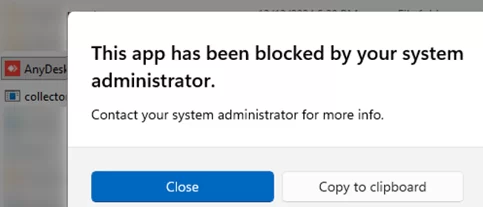
Windows security policies can be configured to prevent users from launching all or only specific applications. In this case, when a user tries to run an executable, Windows may display a message:
This app has been blocked by your system administrator
This usually indicates that an administrator has enforced application control policies on the computer. It can also occur if malware has compromised the system and reconfigured local policies to block system and diagnostic tools from running, making malware detection and removal more difficult.
In this article, we will look at how to determine which Windows security mechanism is blocking your program from running and how to unblock a program that has been blocked by a system administrator.
Windows 10 and 11 include the following built-in mechanisms for restricting application execution:
- Software Restriction Policies (SRP) – a powerful application-blocking mechanism that is now deprecated and is not recommended for use on modern versions of Windows.
- AppLocker – a straightforward and effective application control mechanism that is commonly used to create allowlists and/or blocklists for applications on Windows 10 and 11.
To check if any software restriction policy rules are currently being applied to the computer, open the Resultant Set of Policy tool by running rsop.msc or use the gpresult command. Check whether any software restriction rules are enforced under the following Group Policy sections.
- Computer Configuration -> Windows Settings -> Security Settings -> Software Restriction Policies -> Additional Rules
- User Configuration -> Windows Settings -> Security Settings -> Software Restriction Policies -> Additional Rules
In this example, an explicit deny rule has been created for the anydesk.exe executable (by default, Windows should not have any active SRP rules). By switching to the Precedence tab, you can determine exactly which GPO applied this rule. In my example, the deny rule was applied via a domain Group Policy, so only a domain administrator can disable it.
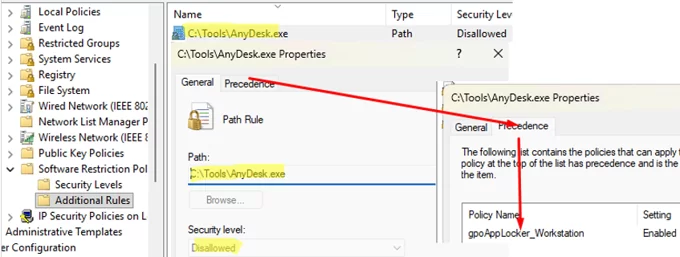
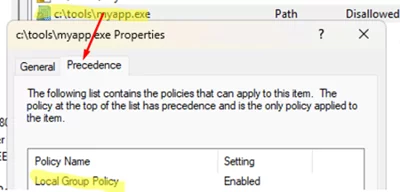
If an SRP rule is configured through the computer’s Local Group Policy, the policy name will be listed as Local Group Policy. You can disable this rule yourself by using the Local Group Policy Editor.
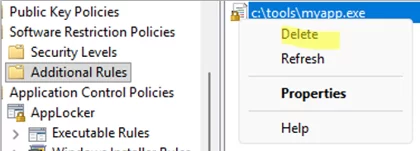
Run the gpedit.msc and navigate to Computer (or User) Configuration -> Windows Settings -> Security Settings -> Software Restriction Policies -> Additional Rules. Delete the SRP rule associated with the application you want to unblock.
To check if there are any active AppLocker rules on your computer preventing applications from running, run the following PowerShell commands:
$AppLockerPolicy = Get-AppLockerPolicy -Effective
$AppLockerPolicy.RuleCollections.name
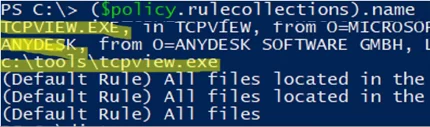
If AppLocker rules are being applied to your computer through domain Group Policy, you will most likely need assistance from a domain administrator to disable these blocking rules. Locally configured AppLocker rules can be removed through the Local Group Policy Editor.
- Open the
gpedit.msc - Navigate to Computer Configuration -> Policies -> Windows Settings -> Security Settings -> Application Control Policies -> AppLocker
- Check all nested nodes for deny rules.
- In my example, there is only one rule preventing applications from running under Executable Rules.
- Delete this rule.

- Restart the computer to apply the changes.
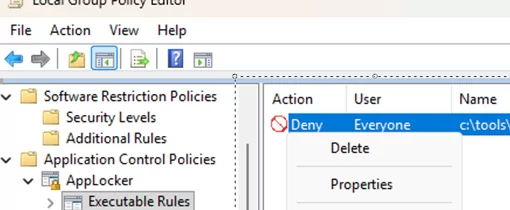
It is also possible to remove local SRP and AppLocker policies directly from the Windows registry.
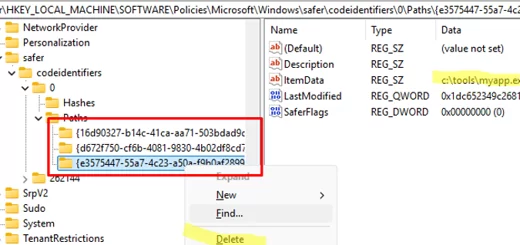
Local SRP rules can be stored under the following registry keys:
HKEY_CURRENT_USER\Software\Policies\Microsoft\Windows\Safer\CodeIdentifiersHKEY_LOCAL_MACHINE\SOFTWARE\Policies\Microsoft\Windows\safer\codeidentifiers\0\PathsHKEY_LOCAL_MACHINE\SOFTWARE\WOW6432Node\Policies\Microsoft\Windows\safer\codeidentifiers\0\Paths\
By default, these keys should not contain any rules. In our example, there are three AppLocker rules in a registry. Delete the registry keys containing these rules, and then, in the parent CodeIdentifiers key, change the DefaultLevel value to 40000 (HEX).
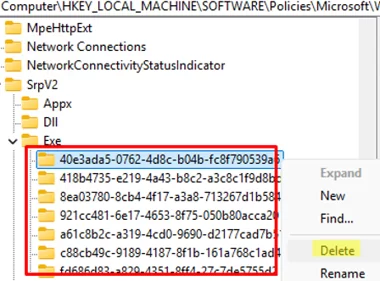
AppLocker application control policies are stored in the registry under the key HKEY_LOCAL_MACHINE\SOFTWARE\Policies\Microsoft\Windows\SrpV2 . Each rule is stored in a separate subkey, which is identified by a GUI. To remove a rule, simply delete the corresponding registry key.
Malware that has compromised a computer often uses AppLocker and SRP rules to prevent antivirus components and diagnostic tools from executing. Manually removing these Windows security policies will allow the blocked software to run. After restoring access, it is recommended to boot the computer from a LiveUSB rescue image provided by an antivirus vendor and perform an offline malware scan
1 comment
Massive thank You 🙏 this helped me!