If you use mapped network drives (folders), you’ve probably noticed that they aren’t showing up in programs (including the CMD and PowerShell prompts), then those apps are running with administrator privileges. This is because the default User Account Control (UAC) settings restrict access to mapped network drives for applications running in an elevated (Run as administrator) context. This means that when you run the command prompt or a file manager (like Total Commander) with elevated privileges, they won’t display the drive for your mapped shared folders.
You may face such a problem if the following conditions are true:
- Network drives are mapped in the user’s session via GPO or manually using the
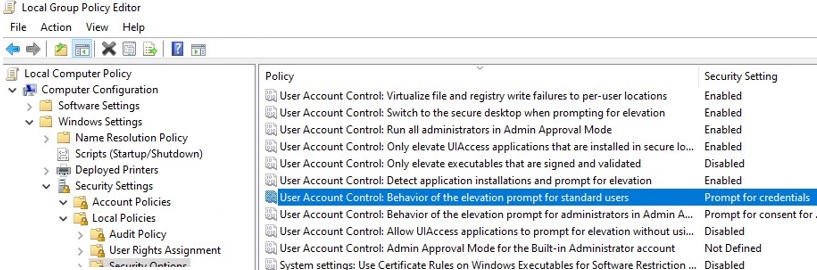
net usecommand or with theNew-SmbMappingcmdlet. - UAC is enabled on the computer (the GPO parameter User Account Control: Behavior of the elevation prompt for administrators in Admin Approval Mode is set to the default value “Prompt for credentials”).

- The current user has local administrator permissions on the computer and runs the app in “Run as administrator” mode.
In this post, I will demonstrate how to allow access to mapped network drives from programs running with administrative privileges in Windows.
Mapped Drives are Not Visible in Apps Running As Administrator
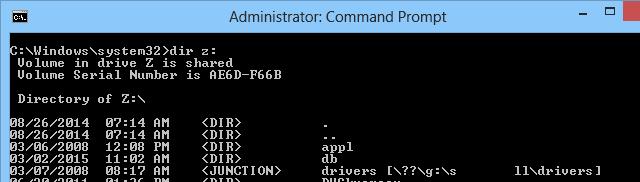
Let’s check that you cannot access the mapped network drive connected in normal mode from an elevated application with UAC enabled. For example, let’s open a command prompt with user permissions and check if you can access the contents of the mapped network drive Z:\.
Net use
 Dir z:
The command should list the contents of the shared network folder.
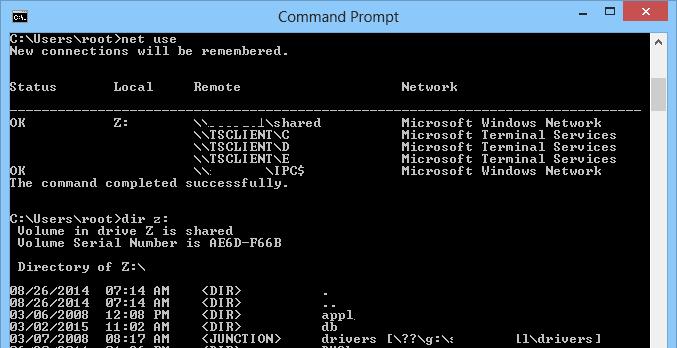
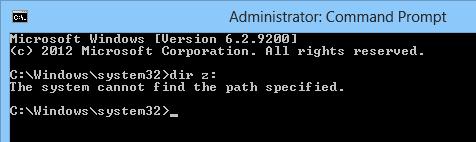
If you open the Command Prompt in the current session as an administrator and try to access the same mapped drive, you’ll receive an error stating that the drive path cannot be found.
The system cannot find the path specified.
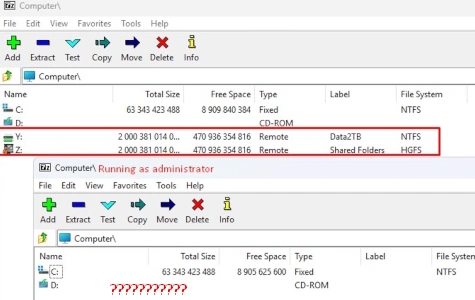
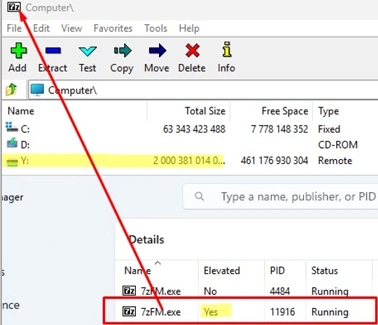
The screenshot below shows an example of the 7Zip app with one program instance running as an administrator (elevated) and the other running with standard user rights. None of the mapped network drives are displayed in the app, which is run with administrator rights. Only local drives are available.
This default Windows behavior can be inconvenient if you frequently run applications in privileged mode. Although it is possible to run applications without administrator privileges, this is not always applicable.
Why does it happen? This peculiarity is related to the UAC mechanism for users with local administrator privileges. When a user with administrator privileges logs into Windows, the system creates two access tokens. One is a filtered token with disabled administrator privileges, which most programs run under. The other is a full administrator token, which is used for any process elevated through User Account Control.
When UAC is enabled, applications run by the same user may be run in two contexts: privileged and unprivileged. When you map shared network folders, the system creates symbolic links (DosDevices) that store the drive letter mapping to the UNC paths. These links are associated with the current process access token and are not available to other tokens.
Enable Access to Mapped Drive from Elevated Apps
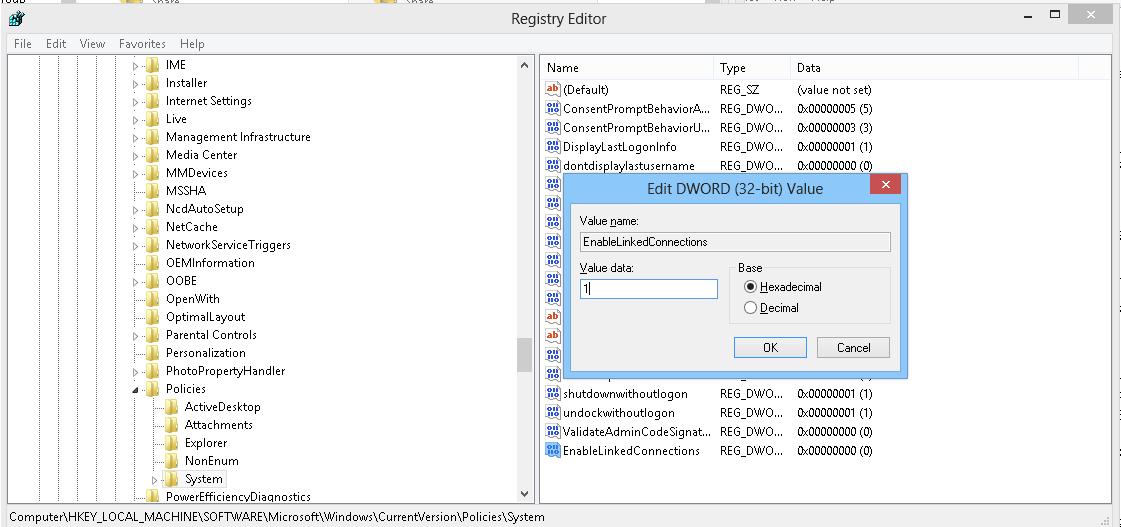
To make network drives mapped in a user session accessible to elevated apps running with administrative permissions, you must create the EnableLinkedConnections registry value on the computer:
- Open the registry editor (regedit.exe).
- Go to the registry key HKEY_LOCAL_MACHINE\SOFTWARE\Microsoft\Windows\CurrentVersion\Policies\System
- Create a new DWORD parameter with the name EnableLinkedConnections and the value 1
 Tip. This registry option can be created using the command:
reg add "HKEY_LOCAL_MACHINE\Software\Microsoft\Windows\CurrentVersion\Policies\System" /v "EnableLinkedConnections" /t REG_DWORD /d 0x00000001 /for with PowerShell:
New-ItemProperty -Path 'HKLM:\SOFTWARE\Microsoft\Windows\CurrentVersion\Policies\System' -Name EnableLinkedConnections -Value 1 -PropertyType 'DWord' - Restart your computer (or restart the LanmanWorkstation service with the command:
get-service LanmanWorkstation |Restart-Service –Force, and re-logon Windows).
Make sure that the user’s network drives are now visible in elevated apps running with admin privileges. Such processes are displayed in Task Manager with the property Elevated=Yes.
This also works in reverse: any network drives mapped in the context of an elevated session will also be available in a regular (unprivileged) user session as well.
How does it work? Enabling the EnableLinkedConnections registry option causes the LanmanWorkstation service and LSA (lsass.exe) to check for a second access token associated with the current user’s session. If this token is found, the list of the mapped network drives will be copied from one token to another. This will make network drives that are mapped in privileged mode visible in normal mode, and vice versa.
mklink /D c:\docs \\dublin-fs1\docs
This drive can be accessed as a symlink to a local folder in both normal and elevated modes. Note that with this method, you can only access the shared folder under the current user’s credentials. It is not possible, as in the case of net use command, to use another user’s account credentials.
After enabling the EnableLinkedConnections registry option, mapped drives will be available in Scheduled Tasks running under the current user. If the scheduled task is run as LocalSystem or another user, the mapped network will be unavailable in the current user session. The reason is that network drives are mapped for each user individually (on a per-user basis).
4 comments
Great! Well explained!
I remember having a hard work to understand why my mapped drives were not appearing in the elevated prompts… Until I found a technet post that saved my life lol
I faced this issue before and had to change the registry parameter to solve it.
Now is more clear and understood.
Many thanks!
did not work for Quickbooks Desktop Enterprise
This did not work for me. Environment: VirutalMachine: Guest: Win 10 Pro, Host: Win 10 Pro, Mapped Network Drives: “\\vmware-host\Shared Folders\*”.
I found that by creating a batch file that causes and elevated “Administrator: Command Prompt” and a All users Startup (shell:common startup”) I am able to automate the mapping. Note that the normal File Manager mapping works.
The code to get an elevated command prompt can be found at: https://stackoverflow.com/questions/11525056/how-to-create-a-batch-file-to-run-cmd-as-administrator