In this article, we will look at the main ways to manage File Type Associations (FTA) with default apps in Windows from a system administrator’s perspective. A file association in Windows defines the relationship between a file type (extension) and the program used to open it by default. Note that some methods of managing file associations that worked in previous Windows versions either no longer work or work only partially in modern versions of Windows 10/11 and Windows Server 2022/2025.
- How to Set a Default Program for a Certain File Type in Windows 11
- Export and Import Default App Associations on Windows to the XML file
- Configure Default File Associations via Group Policy
- How to Set File Associations from Command Prompt
- Registry Location for File Extension Associations
- User Choice Protection Driver: Prevent File Association Changes in Windows 11
- Change Default File Associations in Windows 11 Using SetUserFTA
- How to Reset File Associations to Default in Windows
As an example, we will show how to configure the default app for opening *.pdf files in Windows manually, through the command line, by exporting the current file associations from a reference computer to an XML file and applying that file to other computers manually or through Group Policy. We will also cover the specifics of configuring user-level and system-level file associations in the current Windows 11 25H2 build.
How to Set a Default Program for a Certain File Type in Windows 11
First, let’s look at the official administrative method for exporting and importing file association settings. This method works in both Windows 10 and Windows 11; it is not blocked by Windows 11’s built-in User Choice Protection mechanism and is not automatically reset by the system.
Suppose you want to set Adobe Acrobat Reader DC as the default app for opening *.PDF files on all computers in the domain. In other words, you want to associate the .pdf file extension with a specific program. To do this, we need a reference Windows computer with Acrobat Reader installed (in this example, the computer running the current Windows 11 25H2 build).
To manually create an association between a file extension and a program:
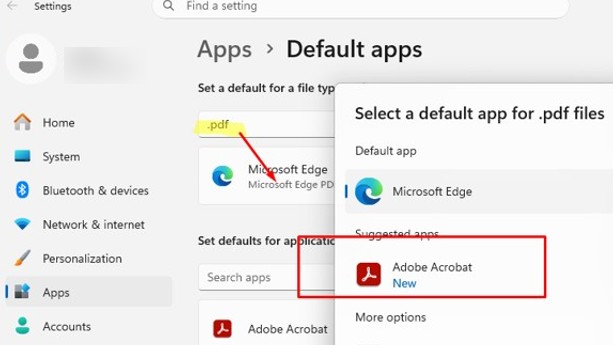
- Go to Settings -> Default Apps (or run the Settings URI command ->
ms-settings:defaultapps). - In the Set a default for a file type search bar, type the file extension
.pdf. - The program currently assigned to this file type will appear below the search bar (by default, Windows 11 opens PDF files using the Microsoft Edge browser)
- Click on the assigned app and select Adobe Acrobat from the list of registered apps. If it doesn’t appear in the list of recommended apps for some reason, specify the path to the executable file manually. For example:
"C:\Program Files\Adobe\Acrobat DC\Acrobat\Acrobat.exe"
- Click the “Set as default” button
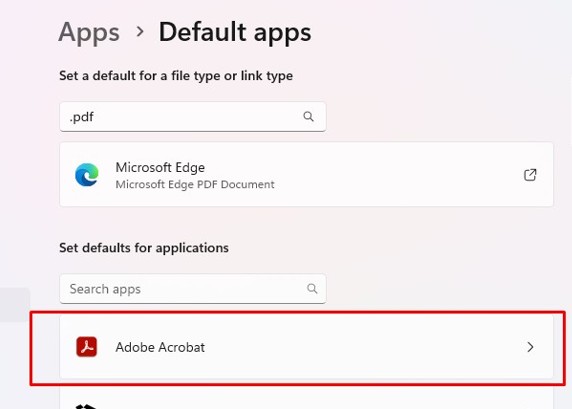
You can automatically assign a specific app to the file extension for which it is registered. To do this, find your program in the Default Apps section and click on it.
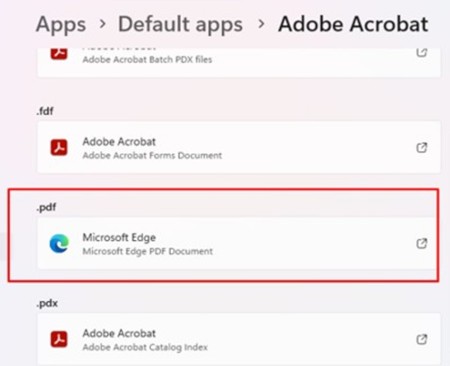
A list of file types supported by this app will appear on the screen that opens. Choose which file extensions you want to open by default using Acrobat Reader.
Export and Import Default App Associations on Windows to the XML file
Once you have configured the necessary file-to-program associations for a user on a reference computer, you can export the current settings to an XML file using the DISM command:
Dism.exe /online /Export-DefaultAppAssociations:C:\PS\DefaultAssoc.xml
You can open the DefaultAssoc.xml file with any text editor and see the full list of file associations exported. If you need to use only some of the file associations from this list (in order not to override the existing user associations), you can manually edit the XML file. Only keep the lines containing the file extensions that you need. For example, we’ll leave the following lines for PDF and FDF extensions:
<?xml version="1.0" encoding="UTF-8"?>
<DefaultAssociations>
<Association Identifier=".fdf" ProgId="AcroExch.FDFDoc" ApplicationName="Adobe Acrobat Reader DC" />
<Association Identifier=".pdf" ProgId="AcroExch.Document.DC" ApplicationName="Adobe Acrobat Reader DC" />
</DefaultAssociations>
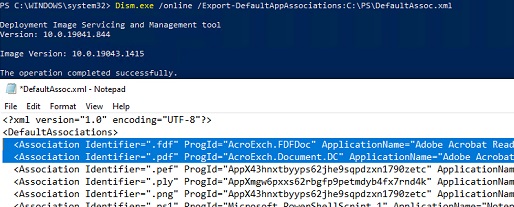
The resulting XML file can be imported into other computers using the DISM command:
Dism.exe /Online /Import-DefaultAppAssociations:C:\PS\DefaultAssoc.xml
If you receive an App default reset notification error during the import, check the syntax of the XML file.
You can also import file association settings to an offline Windows image in a WIM file (that is used to deploy your custom Windows image to new computers). First, mount the image:
Dism /Mount-Image /ImageFile:C:\mnt\images\install.wim /MountDir:C:\mnt\offline
Then import the XML file:
Dism.exe /Image:C:\mnt\offline /Import-DefaultAppAssociations:\\Server1\Share\DefaultAssoc.xml
Dism.exe /Image:C:\mnt\offline /Get-DefaultAppAssociations
Configure Default File Associations via Group Policy
A special Group Policy option is available in Windows 10/11 and Windows Server 2025/2022/2019/2016 that allows an XML file containing file association settings to be applied to all current users of the computer.
For example, you want to apply a Group Policy with file association settings to all the computers in a specific OU (Organizational Unit) of Active Directory.
- Open the Group Policy Management console.
gpmc.msc). - Find the OU containing the computers to which you want to apply file associations and create a new GPO.
- Edit the new GPO and navigate to Computer Configuration -> Administrative Templates -> Windows Components -> File Explorer.
- Find the option Set a default associations configuration file;
- Enable the policy and specify the UNC path to your XML file (make sure the path doesn’t contain quotes or spaces). It can be located in a shared network folder, SYSVOL directory on the domain controller, or pre-copied to the computers using GPO or SCCM.

- Restart your computer to apply the new file associations.You can use the gpresult.exe tool to troubleshoot GPO problems.
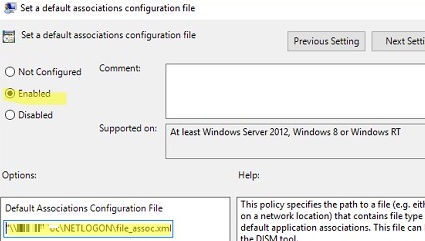
The new file association settings will be applied to all users of the computer the next time they sign in.
HKEY_LOCAL_MACHINE\SOFTWARE\Policies\Microsoft\Windows\System.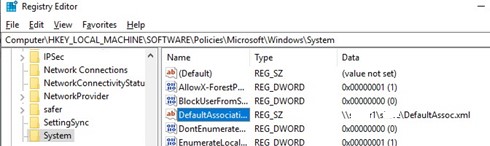
This policy applies to all users at the computer level (machine-level). It cannot be scoped to specific users or groups. The new file association settings are applied when the user signs in. Although the user can change the assigned file associations during their session, they will be overwritten by the settings from the XML file the next time the Group Policy settings are updated.
Because Windows 10 and 11 track changes to file associations, the first time a user attempts to open a PDF file, Windows may display a confirmation dialog asking whether Acrobat Reader should be used as the default application for this file type. This prompt is displayed only once.
A similar notification is also displayed after installing a new application that is registered to open an existing file type or protocol. You can suppress these notifications by enabling the Do not show the ‘new application installed’ notification policy in the same GPO section.
How to Set File Associations from Command Prompt
In earlier versions of Windows, the built-in command ASSOC could be used to set file type associations with apps. For example, to check the program that should be used to open PDF files, run the command:
assoc .pdf
In this example, you can see that the AcroExch.Document.DC file type is associated with the PDF file extension:
.pdf=AcroExch.Document.DC

The assoc command returns the app aliases. To understand which binary the AcroExch.Document.DC app is associated with, run:
ftype AcroExch.Document.DC

assoc|more
You can set the type for a specific file type with the command:
ASSOC .csv=txtfile
In this example, we have specified that all CSV files should be opened as plain text files (using notepad.exe by default).
You can create or change the association of a file extension with a program from the command prompt. For example, you want all files with the .tx1 extension to open with notepad++.exe. First, you need to associate the .tx1 extension with the new tx1file file type.
assoc .tx1=tx1file
Now, set the app to open files with the .tx1 extension by default.
ftype tx1file="%programfiles(x86)%\"Notepad++\notepad++.exe" "%1"
However, in Windows 11, system protection will reset any changes to the file associations made using the command below:
assoc .pdf=MSEdgePDF
ftype MSEdgePDF="C:\Program Files(x86)\Microsoft\Edge\Application\msedge.exe" -- "%1"
Registry Location for File Extension Associations
The file association settings are stored in the Windows registry. In the previous section, we showed how to configure the .PDF file type association with Acrobat Reader using an XML file and Group Policy. Now let’s see how it looks in the Windows Registry.
Run the Registry Editor (regedit.exe) and go to the registry key HKEY_CURRENT_USER\Software\Microsoft\Windows\CurrentVersion\ Explorer\FileExts\.pdf\UserChoice. This registry key contains the association settings for the PDF file extension.
Please note the following registry parameters:
- ProgId – this is the text identifier of the registered app to open this file type. This app ID is specified in the XML file. If a long identifier is specified instead of the application name, then the file association with the Microsoft Store (UWP) app is configured.
- Hash – a hash value that is automatically generated to validate the file association with the program (it is calculated based on the user’s SID, the file extension, the ProgID value, and the system key). The presence of this hash confirms that this file association was configured manually by the user or administrator via GPO. This security mechanism is designed to protect users from malware that can change file associations without the user’s approval.
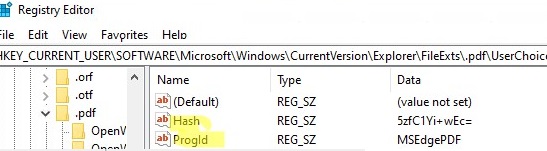
If you try to manually change the ProgId registry value and assign another program, the Hash value will no longer be valid. In this case, Windows will automatically reset the file association settings to the default state, and the user will receive a notification:
An app default was reset.
An app caused a problem with the default app setting for .html files, so it was reset to Microsoft Edge.
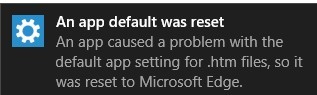
Accordingly, in Windows 10 and 11, you won’t be able to configure file associations through the registry, as you could in Windows 7. In addition to ACLs, the values in this registry key in Windows 11 are protected by a special UCPD driver.
User Choice Protection Driver: Prevent File Association Changes in Windows 11
In 2024, a special kernel-level driver known as the User Choice Protection Driver (UCPD) was added to Windows 10 and 11. It is designed to prevent direct modifications to the registry keys that are responsible for default file and protocol associations. In particular, this protection applies to the HTTP and HTTPS protocols and to PDF files.
For example, if you try to manually change a value under the following registry key, an error will appear: HKEY_CURRENT_USER\Software\Microsoft\Windows\CurrentVersion\Explorer\FileExts\.pdf\UserChoice
Protected file associations can only be changed manually via the Settings app or via Group Policy.
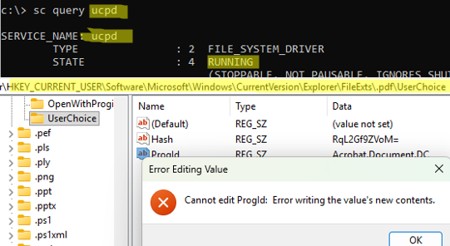
The UCPD driver’s task is to prevent third parties from changing the associations of certain file types without the user’s knowledge. It is also intended to prevent a ‘browser default’ battle when several alternative browsers are installed on the device.
Change Default File Associations in Windows 11 Using SetUserFTA
To programmatically change a user’s file associations in Windows, you can use the third-party console command SetUserFTA (https://setuserfta.com). This utility allows you to write the assigned ProgID value for a file extension directly to the registry and immediately updates the hash value.
To list the current file associations and the ProgID set for them in Windows, run this:
SetUserFTA get
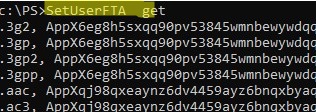
To set an association for a specific file extension, use the command:
SetUserFTA.exe extension progid
You can find the ProgID assigned to a program using the following command:
SetUserFTA.exe get | findstr /I "pdf"

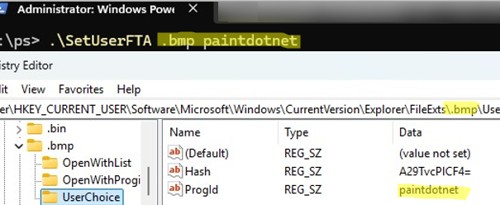
To set PaintDotNet++ as the default app for opening BMP image files, for example, run the following:
SetUserFTA .bmp paintdotnet
Or set the default application for PDF files:
SetUserFTA.exe .pdf Acrobat.Document.DC
The utility updated the ProgID value correctly and recalculated the hash sum for this file type in the registry.
For example, set Chrome as the default browser for HTTP/HTTPS protocols and HTML files:
SetUserFTA .http ChromeHTML
SetUserFTA .https ChromeHTML
SetUserFTA .htm ChromeHTML
SetUserFTA .html ChromeHTML
sc.exe config UCPD start= disabled
schtasks.exe /change /Disable /TN "\Microsoft\Windows\AppxDeploymentClient\UCPD velocity"
Restart the computer after that.
If the application doesn’t have a registered file class or ProgID, you can specify its executable. For example:
SetUserFTA .txt applications\notepad++.exe
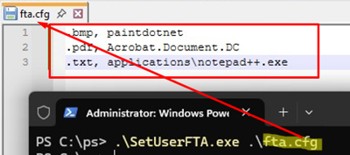
HKEY_CLASSES_ROOT\Applications .The SetUserFTA tool supports using the configuration files. You can set multiple file associations at once by creating a text file named userfta.cfg in the following format:
.pdf, Acrobat.Document.DC
.bmp, paintdotnet
.txt, applications\notepad++.exe
To apply the file associations from the config file in bulk, run:
.\SetUserFTA.exe .\userfta.cfg
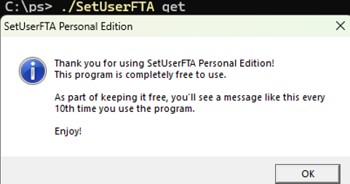
A notification about using the free version appears every 10th time the SetUserFTA tool is launched. The launch counter is stored in the RunCount parameter within the HKEY_CURRENT_USER\Software\Kolbicz IT\SetUserFTA registry key. To prevent these notifications from appearing, lock the current value of the parameter (using Windows Event Triggers with an assigned Task Scheduler job or Group Policy Preferences).
How to Reset File Associations to Default in Windows
Use the following command to reset any previously imported file association settings on a Windows computer:
Dism.exe /Online /Remove-DefaultAppAssociations
After running this command, all new users will be logged in with the default file association settings (the reset has no effect on the existing user profiles).
In order to reset the file associations configured manually by the user to the default ones, you need to click on the Reset button in Settings -> Apps -> Default Apps.
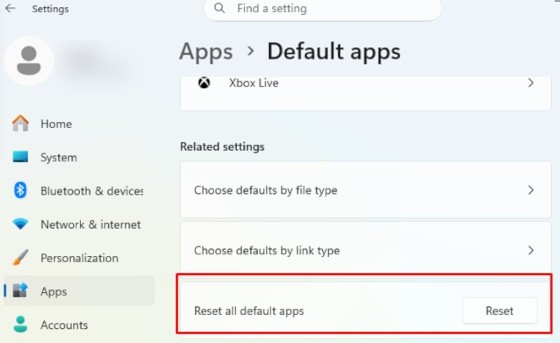
This will restore all file associations to their original state, as they would be in a clean Windows 11 installation.
21 comments
Wow…Microsoft sure knows how to SCREW things up!
If they would just keep things simple then they would have a much faster OS…
There is no need whatsoever for File Associations so they just need to get rid of it altogether…
If an application knows how to open up a file then let it do so…if it FAILS then let that application FAIL.
Same thing goes for Browsers…Get rid of DEFAULT BROWSERS…
Let the User of the Computer decide what Browser they want to use.
There is no need whatsoever to be asking the User what App they want to open WHAT FILE…
Garbage…
Get rid of the whole File Associations thing and watch how much faster the OS will be.
Just saying.
– SCOTTY
Huh? How can this possibly work:
1. Remove all file associations… and all default browser settings.
2. All the files will somehow just “magically” know which programs to use, when opening a file.
3. Let the computer decide.
How can the hardware (computer) decide?
The File Associations are what *MAKES* things work.
Beam that comment down Scotty!
File associations have been around since MS-DOS days. It is how the MS operating systems have grown over time to make use of these human discernable understanding of an OS, even Linux world has a few. like .RPM etc.
How does the OS know that a file/program belongs to Scotty vs Gustaaf? It’s last name of course! Extensions and default handlers fill in that gap like a last name. And you missed the part where the author explained that extension handling is now a security concern too, where we would want to prevent unauthorized changes!
Scotty is right, this is insanely stupid. There should be a GPO not a link to an XML file somewhere for setting the default for application. This is Microsoft allowing you to do something but making it extremely difficult and add a performance penalty. A default browser is an option in Windows, with no equivalent GPO there is only one reason to do that, make IE or whatever other br4owser MS creates the hardest possible default to change.
No, Scotty is VERY wrong and isn’t thinking any of these suggestions through. It’s a recipe for a poor user experience, and the idea of having no default handlers is a security nightmare and an attacker’s wet dream. And there is no performance penalty to default file types either. Also, you have to have at least one default browser on the system. How else could you download another?
As for why there is no GPO ability, again think it through. Back in the XP/Vista/7 days any program could install and usurp your default applications with little effort. MS made changes that made it more difficult (which is good, especially today) for applications to change default file types without your knowledge. If a GPO was available (i.e. just making registry changes), that would effectively create a loophole bringing this problem back into existence.
And none of this is “extremely difficult”, nor does it cause a performance penalty.
I agree with you but there is a way to make registry changes to associate a program with an extension.
For example for “.txt” extension the Registry Editor path is:
Computer\HKEY_CURRENT_USER\SOFTWARE\Microsoft\Windows\CurrentVersion\Explorer\FileExts\.txt\UserChoice
and you can add or edit the key “ProgId” (type REG_SZ) and you can add a custom value like “Applications\Code.exe” for using Visual Studio Code (if it’s installed) instead of Notepad.
You can also change the program list for extension “.txt” in Registry Editor path:
Computer\HKEY_CURRENT_USER\SOFTWARE\Microsoft\Windows\CurrentVersion\Explorer\FileExts\.txt\OpenWithList
(where you have a list of type “REG_SZ” with names like “a”, “b”, “c”, and so on, and values like “NOTEPAD.EXE”, “Code.exe”, “chrome.exe” and so on).
But the whole system is stupid now. I need a more finegrained system than this. I have hundreds of machines, laptops and desktops, with different associations everywhere. I want to change 1 association, for that I would have to “export all the things” and apply them again? What a drag.
> How does the OS know that a file/program belongs to Scotty vs Gustaaf?
File associates have NOTHING to do with “what person does this file belong to”. Ugh.
Thank you for great summary and details of the FTA topic (FTA global configuration is nighmare in terminal server environment for all the time, regardles of old or new method).
I have an additional question related to usgin .xml in GPO.
Do you know whether it is neccessary to allways export/import entire FTA .xml file or it is enought to apply just part of FTAs realeted to my interrest – rest of already configurad FTAs will not be changed/reset?
In the GPO example, you seem to the Local group Policy editor opened, not the Group Policy Management of a DC. Do you recommand changing the GPO settings on the server it self? I have a DC GPO applied to the server and it works but if the user changes the association, at next logon, it’s not changed again.
The GPO doesn’t work. The policy is applied correctly and successfully, the registry settings in both HKLM and HKCU have changed correctly… i.e. with correct ProgID in UserChoice… The XML file is correct. Yet, when clicking on a file it still insists “What application do you want to open this file with?”… Logged off/on numerous times too. Having spent hours on this supposedly easy and common task, all I can say is…”Microsoft, I am so frustrated with you”
Found the answer to my above problem, the ProgID in XML file was set to “Application\chrome.exe” when I changed it to “ChromeHTML” everything started to work! May be this will help someone out there having the same problem..
Tank you woshub for the detailed information.
To Microsoft:
Windows 11 22H2 Bug: The file assoziation with an exported .xml file and import with GPO is not working any more. With 11 21H2 all assoziations worked. Thank you Microsoft for an overloaded bloaded bug operating system! And thank you for doing as much that Admins cannot personalize the operation system for all Users, paternalism. Conclusion: No more Windows 11!
To Microsoft: Windows 11 22H2 Bug: The file assoziation with an exported .xml file and import with GPO is not working any more. With 11 21H2 all assoziations worked.
-Same problem with our new Windows 11 image…. No solution found.
See my solution below (SetUserFTA with a config file). It’s not ideal, but at least it works 🤷♂️
This is a great article, but in my case nothing worked for a home Windows 10 installation:
– some Windows update triggered resetting all file associations after restart in May 2023 (uninstalling recent updates didn’t help)
– setting associations manually through Settings – Default Apps didn’t work either, everything continued to reset to the default Windows apps (browser, video player, audio player, image viewer)
– I found an app StopResettingMyApps, blocked default Windows apps with it, but it didn’t help – apps just reset to a blank value
– I tried generating an .xml file with Dism.exe and added it to the Local Group Policy Editor – File Explorer, but apps still reset after restart
And then finally I went to SetUserFTA tool’s website and read that it supports configs as well. Exported my config after setting all the file associations manually, created a shortcut and added it to the startup with that config parameter – and DONE. Stupid Windows continues to reset my apps after each restart, but SetUserFTA quickly sets them back. I know it’s not the best solution, but I can’t bother to investigate this problem more. Thank you, WOShub, for mentioning this great tool.
Hi – I tried the SetUserFTA utility on Windows 11 and it worked fine to change default browser to Chrome. Only comment is that the HTTP and HTTPS should not have a preceding “.”. I.e.
SetUserFTA HTTP ChromeHTML
SetUserFTA HTTPS ChromeHTML
SetUserFTA .htm ChromeHTML
SetUserFTA .html ChromeHTML
Many thanks, Edge being the default browser has caused some teeth griding where I work, and this is a nice simple one-step way to change it – either by sched task for login script.
That’s interesting. I’ve used SetUserFTA since 2022 but now (today) I realized, that SetUserFTA HTTP / HTTPS ChromeHTML or any other browser doesn’t work anymore here on the lates Windows 10 and Windows 11. Could that be true?
@Thomas
Confirmed, it also stopped working here after installing Windows 10 March updates.
The author of the tool comfired this, too. It seems to be a new safety feature. A patch is in the making but it will most certainly require admin rights and a reboot. So, there’s no further use for me for this tool unfortunately. They are such idiots at Microsoft. Have to use a ps script that “pretends” user interaction to manually change the standard web browser. There is a script but it only works with Windows 11 and only as long as the GUI of this setting doesn’t change.
Thank you for the article! It was sooo helpful, setUserFTA is a great tool!