Let’s look at several possible solutions for situations where the Windows desktop fails to load after a user signs in. The user can only see a blank desktop with a background wallpaper and a cursor, but with no icons or shortcuts are displayed.
Firstly, check that the Windows Explorer process (explorer.exe) is running in the current user’s session:
- Press
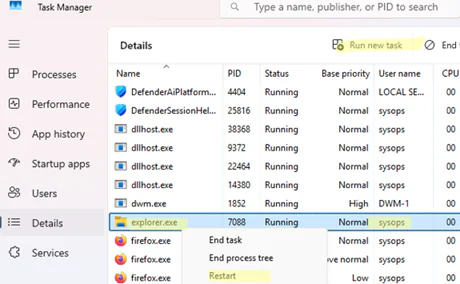
Ctrl+Shift+Escto open Task Manager. - Go to the Details tab and check whether the
explorer.exeprocess is running in your user context. - If the process is running, right-click and select Restart.

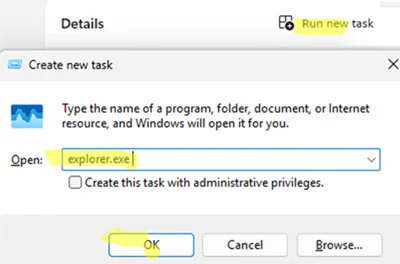
- If the process is not running, click Run new task and execute the command
explorer.exe
- If the
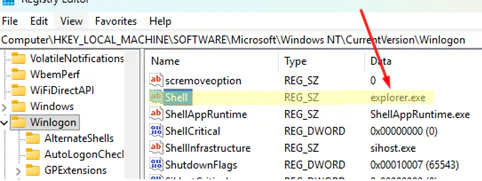
explorer.exeprocess does not start automatically when you sign in to Windows, check that it is specified in the Shell registry value underHKLM\SOFTWARE\Microsoft\Windows NT\CurrentVersion\Winlogon.
If the desktop items still don’t appear, open the user’s profile directory and check whether the current user profile’s Desktop folder contains the files and shortcuts that should be displayed on the desktop. To navigate to this folder, type %username%/Desktop in the File Explorer address bar.
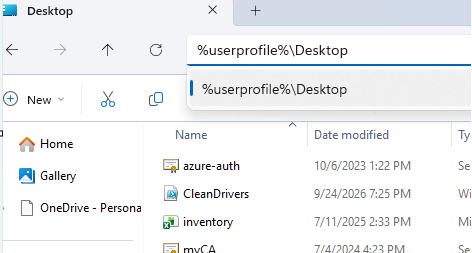
If the Desktop folder is blank, the files in your user profile may have been deleted (for example, following a malware or ransomware attack), or the user profile itself may be corrupted.
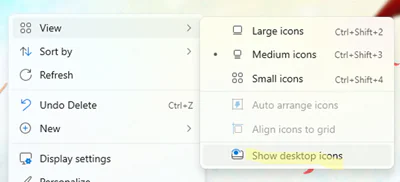
Right-click on the desktop and check whether the Show desktop icons option is enabled in the View context menu. If not, enable it.
Desktop icons may fail to appear in some cases due to corruption of the Explorer icon cache, which is located in the %USERPROFILE%\AppData\Local\Microsoft\Windows\Explorer folder. To reset the icon cache, delete the files in this folder that start with iconcache*. To do this, open the command prompt and execute the following commands (for more details, refer to the post Resetting a corrupted icon cache in Windows):
taskkill /f /im explorer.exe
 cd /d %userprofile%\AppData\Local\Microsoft\Windows\Explorer
 attrib -h iconcache_*.db
 del /f IconCache*
 del /f thumbcache*
 cd /d  %userprofile%\AppData\Local\
 attrib -h IconCache.db
 del /f IconCache.db
 start C:\Windows\explorer.exe
After restarting the Windows Explorer process, the cache files will be recreated automatically.
Desktop items can also be hidden via Group Policy. Check whether this policy is configured on your computer:
- Generate a Resultant Set of Policy (RSoP) report on the machine by running the
rsop.msccommand. - Check that the Hide and disable all items on the desktop policy is not enabled under Computer Configuration -> Administrative Templates -> Desktop.

- If this option is enabled via the local Group Policy editor, use the
gpedit.mscto disable it. If it is configured by a domain policy, contact your system administrator.
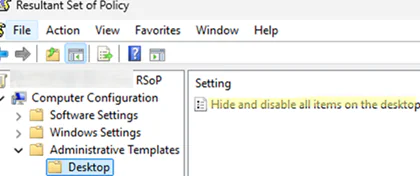
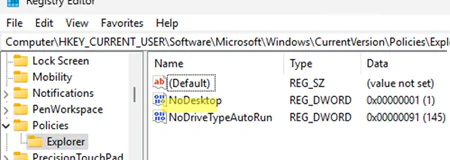
This Group Policy option corresponds to the NoDesktop registry entry. Setting the NoDesktop registry item to 1 can also stop the desktop contents from being displayed. Check and edit this registry parameter value (if required) under the following registry keys:
- HKLM\Software\Microsoft\Windows\CurrentVersion\Policies\Explorer
- HKCU\Software\Microsoft\Windows\CurrentVersion\Policies\Explorer
Then:
- navigate to the registry key
HKEY_CURRENT_USER\Software\Microsoft\Windows\CurrentVersion\Explorer\Advancedand delete the HideIcons item (or set it value to0) - if it exists, delete the registry key
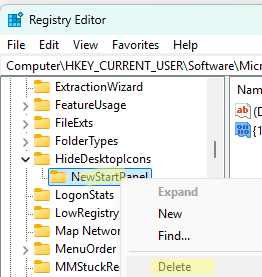
HKEY_CURRENT_USER\Software\Microsoft\Windows\CurrentVersion\Explorer\HideDesktopIcons\NewStartPanel(it controls the visibility of system icons/folders on the desktop)
If nothing has helped, check your Windows image and system files using the following commands:
DISM /Online /Cleanup-Image /RestoreHealth
SFC /ScanNow
Afterward, try creating a new user account to check whether the desktop contents appear in a new clean profile.