In this post, we’ll cover all the ways to fix the Windows user profile load error, which can occur in desktop versions of Windows (from Windows 7 to Windows 11) and on Windows Server. On Windows Server, this issue is particularly common when loading user profiles in a Remote Desktop Services (RDS) environment.
- 0. How to Sign In When Windows Cannot Load the User Profile
- 1. Check the User Profile Location Setting in the Registry
- 2. Repair the Default Profile by Replacing a Corrupted NTUSER.DAT File
- 3. Create a New User Profile and Copy Data from the Old One
- 4. Check the Permissions on the Default User Profile Folder
This error is relatively common and is typically caused by corruption of the user profile directory or profile settings in the registry. Fortunately, it is generally straightforward to fix.
The problem is as follows: the User Profile Service (ProfSvc) cannot load the user’s profile. Consequently, the user cannot log in to Windows, and the following error appears after entering their credentials on the sign-in screen.
The User Profile Service failed the sign-in.
User profile cannot be loaded.

In this case, the Windows User Profile Service cannot even create a temporary profile, which completely prevents the user from signing in to Windows (unlike the We can’t sign in to your account logon error, when a temp profile is created).
This profile load error is usually caused by corruption of the user profile or incorrect permissions on the profile directory/files. This can happen after an improper system shutdown, a faulty Windows update, incorrect registry changes, or other system failures. As there are several possible causes of the problem, we will go through all the potential solutions. If one method doesn’t work, move on to the next.
0. How to Sign In When Windows Cannot Load the User Profile
To fix the issue, you must sign in to Windows using an account that has administrator privileges. Here are the available options:
- If there is another user account with local administrator rights and you know its password (or can reset it), then sign in with that account.
- Restart the computer in Safe Mode: hold down
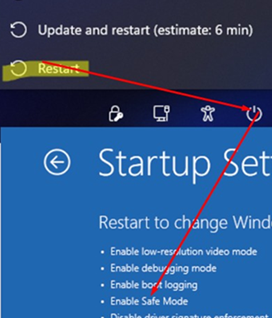
Shiftand click the power button in the bottom-right corner of the Windows sign-in screen, then selectRestart. Go to Troubleshoot -> Advanced options -> Startup Settings -> Restart, and pressF4to boot into Safe Mode. In this mode, you may be able to sign in with your own account because the ProfSvc service does not fully load the user profile in Safe Mode.
- You can enable the built-in Administrator account and sign in using that account.
- Or boot the computer from a bootable USB stick containing any popular LiveCD environment (for example, Hiren’s BootCD PE), and create a new administrator account.
After signing in to Windows:
- Make sure that there is enough free space on the system drive to create a new profile or to write data to existing profile files.
- Check the disk and file system for errors. This may also repair corruption affecting user profile files. Check the system drive by running:
chkdsk c: /f /r
1. Check the User Profile Location Setting in the Registry
Begin by verifying that the user profile settings in the registry are correct. Open the Registry Editor (regedit.exe) as an administrator and navigate to the HKEY_LOCAL_MACHINE\SOFTWARE\Microsoft\Windows NT\CurrentVersion\ProfileList .
You’ll see a list of subkeys representing user profiles, with names such as S-1-5-21-xxxxxxx. These are unique user security identifiers (SIDs). A SID can be used to determine a user account name. Run the following command to list local users and their SIDs:
wmic useraccount get domain,name,sid
If the wmic command is missing (as is the case in Windows 11), use the equivalent PowerShell command instead.
gcim Win32_UserAccount | Select-Object Name, Domain, SID
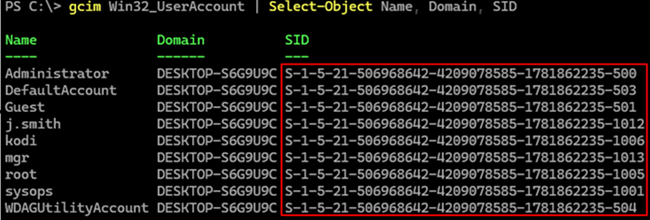
Find the SID of the user whose profile fails to load and then navigate to the corresponding subkey under ProfileList. Or, you can locate the problem user’s profile key by going through each of the SID-named subkeys under the ProfileList section. The correct subkey should contain the user’s profile path in the ProfileImagePath registry value.
Check whether any subkeys have names ending in .bak. Their presence may indicate a failure occurred when loading the profile and that the original profile configuration was preserved into this backup registry subkey.
There are several possible scenarios:
- The subkey name for the problem user profile ends in
.bak. If so, right-click it, select Rename, and simply remove the .bak suffix from the subkey name. - You may find two subkeys for the same user: one ending in .bak and one without the suffix. Rename the subkey without .bak by adding an arbitrary suffix, such as
S-1-5-21-xxxx.backup. Then remove the .bak suffix from the first registry key name.
After renaming the subkey for the target user profile, expand it, locate the State item and set its value to 0 (create this REG_DWORD registry item if it does not exist). If the profile subkey contains a RefCount parameter, set its value to 0 as well (don’t create a RefCount item if it is missing).
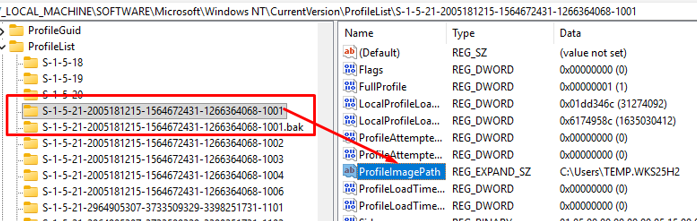
Make sure that the ProfileImagePath parameter points to the correct user profile directory and that the directory actually exists on disk with the same name as specified in ProfileImagePath. In my case, the path is C:\Users\sysops.
Restart the computer and try signing in with the affected user account.
2. Repair the Default Profile by Replacing a Corrupted NTUSER.DAT File
If the The User Profile Service failed the sign-in error occurs when a user signs in for the first time, the problem may be caused by a corrupted NTUSER.DAT file in the Default profile.
This file stores the user settings that Windows loads into the HKEY_CURRENT_USER registry hive upon user sign-in. When the User Profile Service creates a profile for a new user, it uses this file as a template and copies it into the new profile directory. If the template NTUSER.DAT file is missing or corrupted, the User Profile Service cannot create a profile for the new user.
To quickly check the integrity of the NTUSER.DAT file, try loading and unloading it into the registry using these commands:
reg load HKU\Default C:\Users\Default\NTUSER.DAT
reg unload HKU\Default
If the command returns ERROR: The configuration registry database is corrupt, this means that the profile file is indeed corrupted.

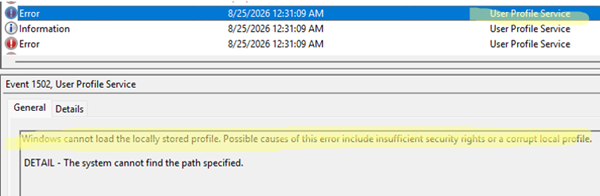
In this case, you can find the events with IDs 1508 and 1502 from the User Profile Service source in the Application section of the Event Viewer.
Windows cannot load the locally stored profile. Possible causes of this error include insufficient security rights or a corrupt local profile.
DETAIL - The system cannot find the path specified.
DETAIL – The system has attempted to load or restore a file into the registry, but the specified file is not in a registry file format
- Navigate to the
C:\Users\Defaultfolder. You should find the NTUSER.DAT file there. Rename it to something likeNTUSER.DAT2. - Next, replace the file with a valid copy obtained from another user’s profile or from another computer running the same version of Windows.
- Restart the computer. If the corrupted NTUSER.DAT file was the cause of the problem, profile creation should now work correctly.
If this doesn’t help, replace the entire C:\Users\Default folder. Though the core of the solution remains the same: the goal is to replace the corrupted NTUSER.DAT file, which is also replaced when you replace the entire folder.
3. Create a New User Profile and Copy Data from the Old One
Microsoft recommends creating a new user account in such situations and copying the user’s data from the corrupted profile to the new one. This is a valid approach, but it can cause additional permission issues because the user’s SID will change. A simpler solution is to copy the user’s files from the old profile to a new profile while keeping the same user account.
- First, delete the old profile’s configuration from the registry. Navigate to
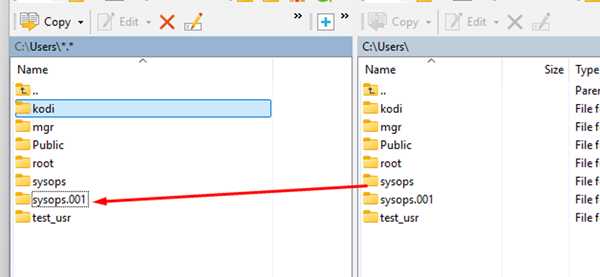
HKLM\SOFTWARE\Microsoft\Windows NT\CurrentVersion\ProfileListand delete all subkeys whose names contain the problem user’s SID. - Restart the computer and sign in with the affected user account. Windows will create a new profile directory for the user, appending a suffix to the directory name, such as
C:\Users\sysops.000orC:\Users\sysops.hostname. A new registry profile configuration will also be created. - Log on to the computer with a different account with local administrator privileges, and manually copy files from the old profile’s folders in C:\Users\sysops (Documents, Desktop, Downloads, including AppData and other folders) to the corresponding directories in the new profile (for example, to C:\Users\sysops.000). The easiest way to copy files is to use any file manager that is running as an administrator.
- Once the data has been copied, sign in with the affected user account and verify that everything works correctly.
4. Check the Permissions on the Default User Profile Folder
The C:\Users\Default folder is used as a template for all newly created user accounts. Missing read permissions on the Default user profile folder can be a source of the error. You may encounter a user profile service sign-in error when attempting to log on to a Windows Server host. In this case, the Event Viewer log may contain the event ID 1509.
Windows cannot copy file C:\Users\Default\NTUSER.DAT to location C:\Users\Username\NTUSER.DAT. This error may be caused by network problems or insufficient security rights.
DETAIL – Access is denied.
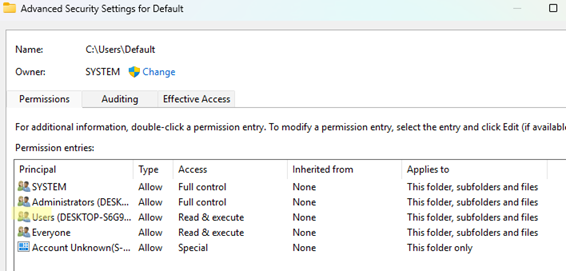
In order to copy the default profile settings to new user accounts properly, the owner of this folder should be SYSTEM, and the Everyone and Users groups should have Read and Execute permissions
To resolve the issue, grant the built-in Users group read permissions for the C:\Users\Default folder, as shown below.
If the error persists, check the Windows Event Log for similar errors, such as event ID 1500, which is related to a corrupted NTUSER.DAT file. This can be resolved using method #2 in this article.
rstrui.exe .In almost all cases, user profile loading issues are caused by either an incorrect profile configuration in the registry or a corrupted NTUSER.DAT file. Resolving the error therefore involves restoring these resources to a working state. When following this guide, start by fixing the profile paths in the registry and checking the NTUSER.DAT file. These steps are usually sufficient to restore the user profile and successfully sign in to Windows.