Windows OS Hub
  • Windows
    • Windows 11
    • Windows 10
    • Windows Server 2025
    • Windows Server 2022
    • Windows Server 2019
    • Windows Server 2016
  • Microsoft
    • Active Directory (AD DS)
    • Group Policies (GPOs)
    • Exchange Server
    • Azure and Microsoft 365
    • Microsoft Office
  • Virtualization
    • VMware
    • Hyper-V
    • Proxmox
  • PowerShell
  • Linux
  • Home
  • About

Windows OS Hub

  • Windows
    • Windows 11
    • Windows 10
    • Windows Server 2025
    • Windows Server 2022
    • Windows Server 2019
    • Windows Server 2016
  • Microsoft
    • Active Directory (AD DS)
    • Group Policies (GPOs)
    • Exchange Server
    • Azure and Microsoft 365
    • Microsoft Office
  • Virtualization
    • VMware
    • Hyper-V
    • Proxmox
  • PowerShell
  • Linux

 Windows OS Hub / Windows 11 / How to Enable Password Sign-In Instead of PIN in Windows 11

November 11, 2026

How to Enable Password Sign-In Instead of PIN in Windows 11

When Windows 11 is provisioned with a Microsoft Account (rather than with a local account), you’re typically prompted to create a Windows Hello PIN for sign-in instead of using your MSA account password. While a PIN is generally considered a secure and convenient alternative to typing a long password, there are certain administrative or troubleshooting scenarios in which password-based authentication is required. In this article, we’ll look at how to change the Windows 11 sign-in method from a PIN to a password.

Contents:
  • How to Fix Missing Password Sign-in Option in Windows 11
  • Enable the Password Sign-In Option via Windows 11 Recovery Environment (WinRE)

If you forget your PIN, you can reset it and sign in with your Microsoft Account password by selecting I forgot my PIN on the sign-in screen. This requires an active Internet connection to submit the PIN reset request and complete verification.
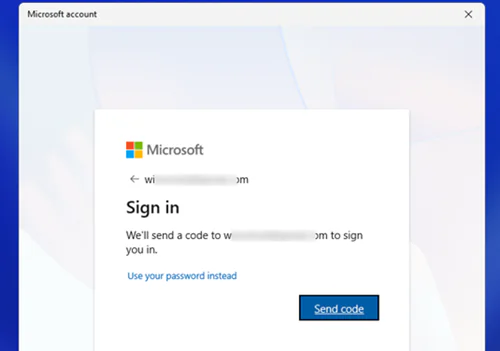
I reset MSA account PIN

Some users prefer to sign in to their computer using their account password rather than a PIN. However, the password sign-in option is not displayed by default on the Windows 11 logon screen.
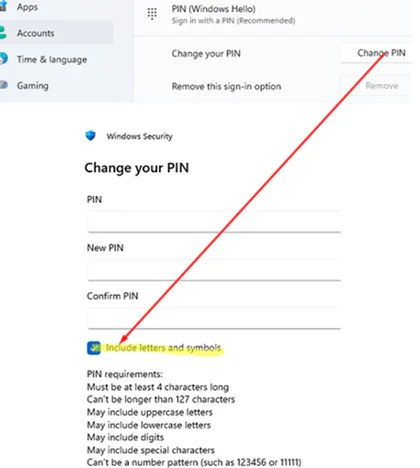
Note: Many users are considering switching back to password-based Windows sign-in, as they believe that PINs are less secure. However, there is another side to this: using a PIN can help to protect your Microsoft account from being compromised. Unlike a PIN, if your account password is leaked, it could potentially compromise all your devices. It is possible to make your PIN more complex by enabling the option Include letters and symbols under Settings -> Accounts -> Sign in options -> PIN -> Change

How to Include letters and symbols to Windows PIN

How to Fix Missing Password Sign-in Option in Windows 11

By default, when Windows 11 is configured with a Microsoft account, Windows Hello authentication is enabled. It allows the user to sign in without entering a password, using a PIN, fingerprint, or facial recognition. Traditional password-based Windows sign-in is disabled.

To enable password sign-in:

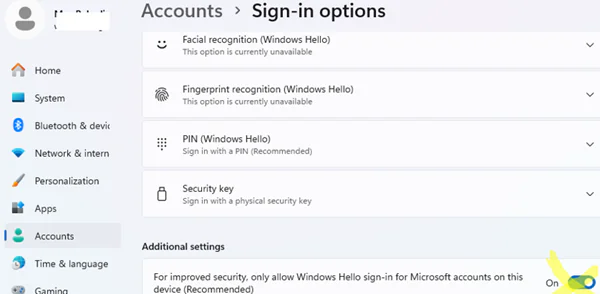
  1. Sign in to Windows and navigate to Settings -> Accounts ->Sign-in options.
  2. Turn off the toggle For improved security, only allow Windows Hello Sign-in for Microsoft Accounts on this device (Recommended). For improved security, only allow Windows Hello Sign-in for Microsoft Accounts on this Device
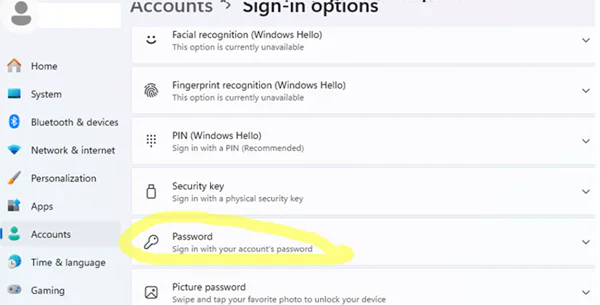
  3. Open the Sign-in options page again. Password authentication and other traditional sign-in methods should appear in the list of available options. allow password sign-in in windows 11
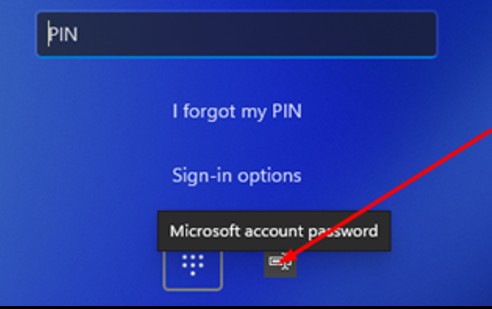
  4. A separate password sign-in option will appear on the Windows 11 sign-in screen. You can use it to sign in to the device with your Microsoft account password instead of using a PIN. If the computer is disconnected from the Internet, a locally cached account password will be used to sign in.
Enable the Password Sign-In Option via Windows 11 Recovery Environment (WinRE)

If the Windows Hello authentication methods (PIN, fingerprint, or facial recognition) fail, but the Microsoft account password is known, the password sign-in option can be explicitly enabled on the Windows logon screen by modifying the system configuration via the Recovery Environment (or by booting from external media like a Windows installation USB stick or a bootable LiveCD image).

In this example, we’ll use the built-in Windows Recovery Environment (WinRE) to make the changes.

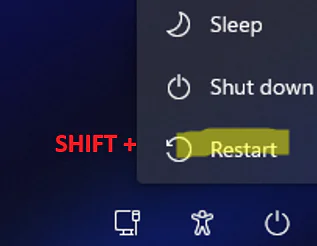
  1. On the Windows sign-in screen, click the Power button and press and hold the Shift key while clicking Restart. Hold Shift with Restrat to boot into WinRE
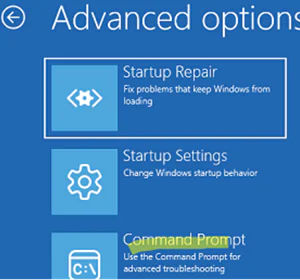
  2. The computer will boot into the recovery environment. Select Troubleshoot -> Advanced Options -> Command Prompt winre - open command prompt
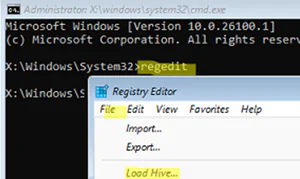
  3. Open the Command Prompt and run regedit to launch the Registry Editor.
  4. In Registry Editor, select File -> Load Hive Windows Recovery Environment locad local registry hive
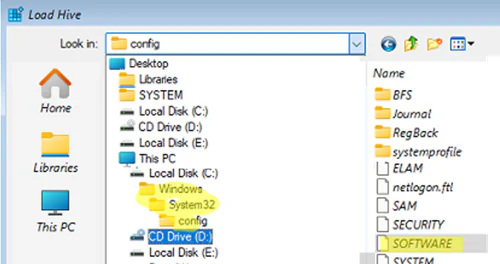
  5. Select the SOFTWARE file (without an extension) in C:\Windows\System32\Config . This file contains the settings loaded to the HKEY_LOCAL_MACHINE\SOFTWARE registry key when the operating system boots upLoad SOFTWARE file into registry
  6. Give the loaded registry hive an arbitrary name.
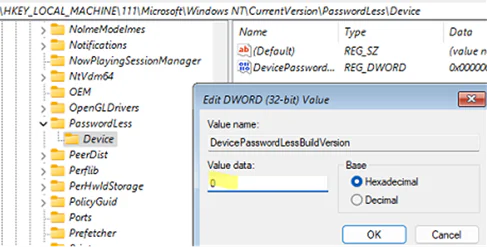
  7. In the mounted hive, go to \Microsoft\Windows NT\CurrentVersion\PasswordLess\Device and change the value of the DevicePasswordLessBuildVersion parameter to 0DevicePasswordLessBuildVersion - disable
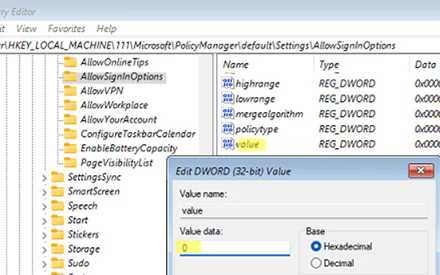
  8. Then navigate to \Microsoft\PolicyManager\default\Settings\AllowSignInOptions and change the value parameter to 0 . AllowSignInOptions - add password sign-in option to welcome screen
  9. Close the Registry Editor and command prompt, then select the option to boot Windows from the WinRE menu.
  10. After this, the Windows 11 sign-in screen will display an option to sign in using your Microsoft account password, alongside the existing PIN sign-in method.Set default login method to password instead of PIN on Windows 11
0 comment
0
Facebook Twitter Google + Pinterest
Questions and AnswersWindows 11
previous post
Fix The User Profile Service Failed the Sign-in: User Profile Cannot Be Loaded
next post
Shrink WSL2 and Docker Desktop VHDX Files in Windows

Related Reading

How to Move (Migrate) Windows Shares to a...

February 26, 2026

Monitor Windows Log Files in Real Time with...

March 26, 2026

Security Warnings When Opening RDP Files in Windows...

April 20, 2026

Remove the Max Path Length Limit (260-Characters) on...

November 19, 2025

Automate Software and Settings Deployment with WinGet Configure...

November 6, 2026

CrowdSec on Windows: From Installation to Threat Blocking

July 6, 2026

We Can’t Sign In to Your Account: Fix...

October 29, 2026

Updating UEFI Secure Boot Certificates on Windows Devices...

April 27, 2026

Leave a Comment Cancel Reply

join us telegram channel https://t.me/woshub
Join WindowsHub Telegram channel to get the latest updates!

Recent Posts

  • We Can’t Sign In to Your Account: Fix Temporary User Profile in Windows

    October 20, 2026
  • Backup/Sync to Cloud Storage with Rclone on Windows

    October 9, 2026
  • Fix Missing “Yes” Button in User Account Control Prompt on Windows

    October 7, 2026
  • Block Specific Keyboard Shortcuts with Keyboard Filter on Windows

    October 3, 2026
  • How to Set Task Priority in Windows Task Scheduler

    September 22, 2026
  • AutoStart Program at RDP Logon in Windows RDS

    September 8, 2026
  • How to Convert Windows Machine into a Proxmox VM

    August 30, 2026
  • Enable or Disable Fast User Switching in Windows 11

    August 18, 2026
  • How to Hide Wi-Fi Network in Windows with WLAN Filters (Blacklist and Whitelist)

    August 14, 2026
  • Invalid Signature Detected: Check Secure Boot Policy [Fix]

    August 5, 2026

Follow us

  • Facebook
  • Twitter
  • Youtube
  • Telegram
Popular Posts
  • Converting Windows 10 to Enterprise LTSC Without Losing Data
  • How to Remove ‘Some Settings are Managed by Your Organization’ on Windows 11 or 10
  • Remove the Max Path Length Limit (260-Characters) on Windows
  • Configure Autostart and Boot Order for VMs on Proxmox
  • Installing Windows without USB/DVD or Other External Drives
  • Fix ‘This App Has Been Blocked by Your Administrator’ in Windows
  • How to Pause (Delay) Update Installation on Windows 11 and 10
Footer Logo

@2014 - 2026 - Windows OS Hub. All about operating systems for sysadmins


Back To Top