A new PowerShell module called OSLicense has recently been added to Windows 11. This module allows users to manage product keys, licenses, and to activate the operating system. This module is intended to replace the legacy slmgr.vbs script, which for decades has been the primary tool for admins to manage activation on Windows devices. Given that Microsoft is deprecating VBScript and plans to remove the VBScript engine from future Windows builds within the next few years, administrators should gradually start transitioning to using this PowerShell module
In this article, we’ll look at the main PowerShell cmdlets for managing Windows product keys, licensing, and activation, along with their equivalents from the legacy slmgr.vbs command that they are intended to replace
PowerShell OSLicense module for Windows
Check whether the OSLicense module is installed on the machine:
Get-Module -ListAvailable -Name OSLicense
The module should have been installed automatically on all supported versions of Windows 11 as part of the cumulative updates released after August 2026. According to Windows Server, it is planned to be added in the next major release.
Although the module is designed for PowerShell 5.1, it will also work correctly with newer versions of PowerShell Core 7.x (pwsh.exe), if you manually import it:
Import-Module OSLicense
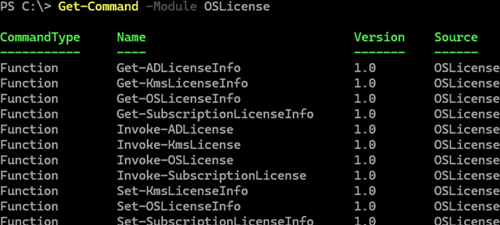
List the cmdlets available in the module. There are currently 11 cmdlets available.
Get-Command -Module OSLicense
Check the current Windows activation status:
Get-OSLicenseInfo
The cmdlet returns a lot of different activation-related information. This is one of the advantages of PowerShell: it returns objects rather than plain text. This allows you to flexibly filter which data (properties) you want to see in the command output. Unlike the results from slmgr, which required additional parsing via scripts
For example, let’s display the Windows version, edition, build, license status, and activation type:
Get-OSLicenseInfo| Select Name,Version,LicenseStatus,Description

This Windows 11 Pro machine has been activated using a KMS server (VOLUME_KMSCLIENT channel).
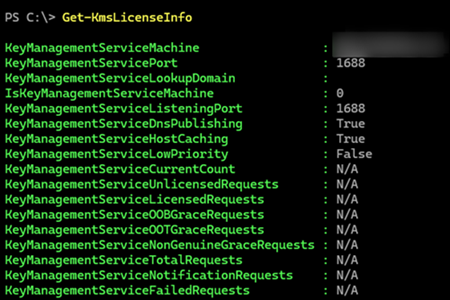
Get the details of the KMS server that is in use and the current KMS activation settings on the machine:
Get-KmsLicenseInfo
How to Manually Activate Windows Against a KMS Server Using PowerShell
The typical sequence of commands for manually activating a Windows client against a KMS server is as follows:
Install a public Generic Volume License key (also called a KMS client setup key) for the required Windows edition. GVLK is used to configure Windows to activate via a KMS host.
Invoke-OSLicense -InstallProductKey "XXXXX-XXXXX-XXXXX-XXXXX-XXXXX"
Specify the address and port of the target KMS host:
Set-KmsLicenseInfo -ServerName kms1.woshub.com -Port 1688
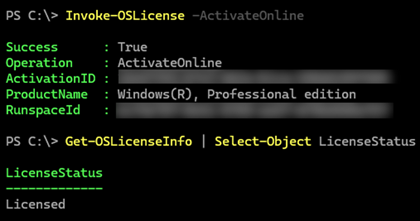
To activate Windows online or against a KMS server (if specified):
Invoke-OSLicense -ActivateOnline
Check the client’s activation status:
Get-OSLicenseInfo | Select-Object LicenseStatus
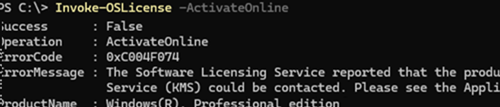
If the KMS server is unavailable, an error will appear:
Success : False
Operation : ActivateOnline
ErrorCode : 0xC004F074
ErrorMessage : The Software Licensing Service reported that the product could not be activated. No Key Management Service (KMS) could be contacted. Please see the Application Event Log for additional information.
Offline Windows Activation Using PowerShell
If the computer has no Internet access, you can still activate Windows offline, but you will need another device or smartphone that can be used to enter and retrieve codes through the visualsupport.microsoft.com portal.
Install the product key:
Invoke-OSLicense -InstallProductKey XXXXX-XXXXX-XXXXX-XXXXX-XXXXX
Get the installation ID for your Windows operating system instance:
(Get-OSLicenseInfo).OfflineInstallationId
Specify your installation ID on the portal. Then paste the confirmation ID code that you receive into the following command:
Invoke-OSLicense -ConfirmationID '<Confirmation_ID_Received>'
Invoke-Command -ComputerName mun-wks123 -ScriptBlock {Get-OSLicenseInfo}
In a domain environment, use the Get-ADLicenseInfo and Invoke-ADLicense cmdlets to manage Windows activation when Active Directory-based activation (ADBA) is enabled.
OSLicense PowerShell Cmdlets and slmgr.vbs Equivalents
The following table provides examples of PowerShell cmdlets from the OSLicense module that can be used for activation management, along with their equivalents in the legacy slmgr.vbs script.
| Task | OSLicense module command | Legacy slmgr.vbs command parameter |
| Display basic license and activation status | Get-OSLicenseInfo | slmgr /dli |
| Displays detailed license and activation information for every Microsoft product installed on a computer | Get-OSLicenseInfo -All | slmgr /dlv all |
| Check the expiration date of the current license | Get-OSLicenseInfo | Select-Object Name, LicenseStatus, PartialProductKey, GracePeriodRemaining, EvaluationEndDate | slmgr /xpr |
| Install a new Windows product key | Invoke-OSLicense -InstallProductKey XXXXX-XXXXX-XXXXX-XXXXX-XXXXX | slmgr /ipk XXXXX-XXXXX-XXXXX-XXXXX-XXXXX |
| Activate the OS online using the product key currently installed (via the Internet on official Microsoft activation servers or through the specified KMS host) | Invoke-OSLicense -ActivateOnline | slmgr /ato |
| Uninstall the current Windows product key | Invoke-OSLicense -UninstallProductKey | slmgr /upk |
| Remove the Windows product key from the registry it from being extracted | Invoke-OSLicense -ClearProductKeyFromRegistry | slmgr /cpky |
| Reset the grace period timer (to rearm the Windows evaluation ) | Invoke-OSLicense -Rearm | slmgr /rearm |
| Get your Windows Installation ID for offline activation | (Get-OSLicenseInfo).OfflineInstallationId | slmgr /dti |
| Enter the confirmation ID | Invoke-OSLicense -ConfirmationID <ConfirmationID> | slmgr /atp <ConfirmationID> |
| Set the KMS server address and port | Set-KmsLicenseInfo -ServerName KMSServerName -Port 1688 | slmgr /skms KMSServerName:1688 |
| Check the current KMS settings | Get-KmsLicenseInfo | slmgr /dlv (under the Key Management Service client information section) |
| Clear KMS server settings | Invoke-KmsLicense -ClearServer, Invoke-KmsLicense -ClearPort | slmgr /ckms |
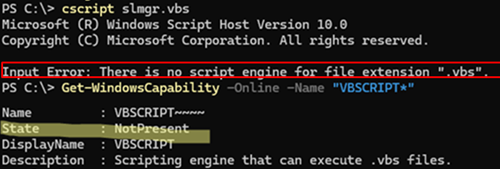
Accordingly, if the VBS Feature on Demand component is not installed in Windows, running any slmgr command will result in an error:
Input Error: There is no script engine for file extension ".vbs".
Check whether this feature is installed:
Get-WindowsCapability -Online -Name "VBSCRIPT*"
It’s time to update your servicing scripts for managing Windows activation on clients, replacing the legacy slmgr.vbs command with its PowerShell equivalent. Unfortunately, there is still no alternative to slmgr for the WinPE environment.